Tracking actual working hours is essential for accurate payroll, productivity analysis, and shift management. Employees may take breaks or have split shifts, making it necessary to calculate net hours worked rather than just total time on site.
In this article, we’ll explore multiple methods in Excel to calculate hours worked minus lunch or breaks. You’ll learn formulas that handle standard shifts, split shifts, overnight schedules, and display options in different formats.
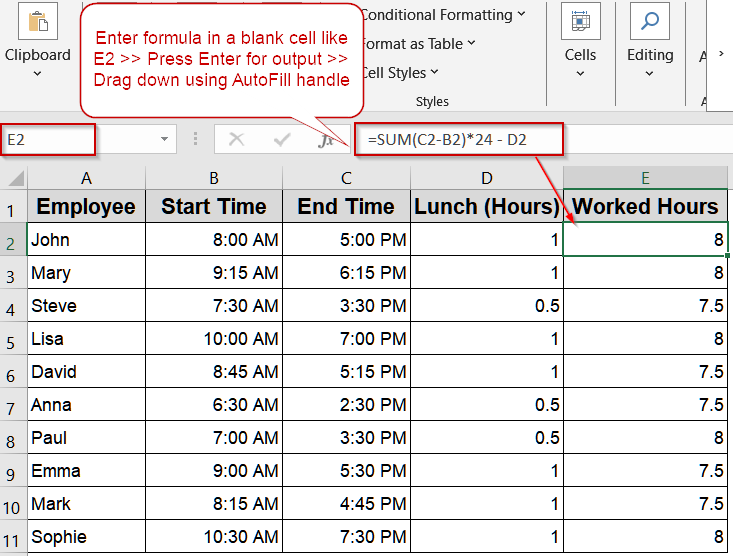
Steps to calculate hours worked minus lunch in Excel:
➤ Enter the start time of the first interval in column B and the corresponding end time in column C.
➤ In a blank cell like G2, use the formula to calculate total hours: =SUM(C2-B2)*24 – D2
➤ Press Enter.
➤ Drag the fill handle down to apply the formula to all rows.
Calculate Total Worked Hours Minus Lunch Using SUM Function
For employees or processes that have multiple work intervals in a day, simply subtracting start time from end time may not capture the full picture. The SUM function allows you to add up all intervals, including split shifts or multiple sessions, giving an accurate total of hours worked and then we can minus lunch hours from it. This approach is highly effective for office schedules, production lines, or service staff where shifts can vary throughout the day.
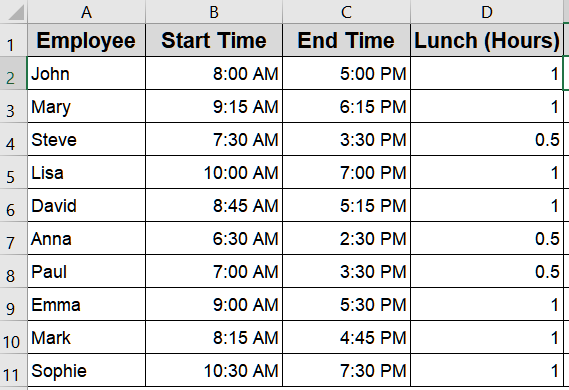
We’ll use a sample dataset of 10 employees with their work intervals per day and recorded lunch breaks.
Steps:
➤ Enter the start time of the first interval in column B and the corresponding end time in column C.
➤ In a blank cell like E2, use the formula to calculate total hours:
=SUM(C2-B2)*24 - D2
➤ Press Enter.
➤ Drag the fill handle down to apply the formula to all rows.
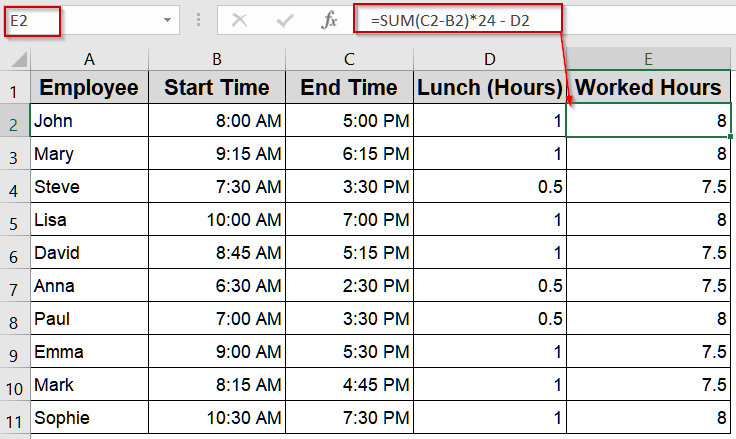
This method ensures accurate calculation of total hours even when employees have split shifts or multiple working periods in a single day.
Use MOD Function to Calculate Hours Worked Minus Lunch
When employees work late-night or overnight shifts, simply subtracting start time from end time can produce negative or incorrect results in Excel. The MOD function solves this by wrapping the calculation to always return a positive value, regardless of whether the shift crosses midnight. Combined with a deduction for lunch hours, this method ensures accurate total worked hours for industries with irregular or overnight schedules, such as healthcare, logistics, or manufacturing.
Steps:
➤ Enter the start time in column B, end time in column C, and lunch hours in column D.
➤ Select a blank cell where you want the total worked hours.
➤ Enter the formula:
=(MOD(C2-B2,1)-D2/24)*24
➤ Press Enter.
➤ Drag the fill handle down to apply the formula to all rows.
➤ Set the display format to Number from the Home tab.
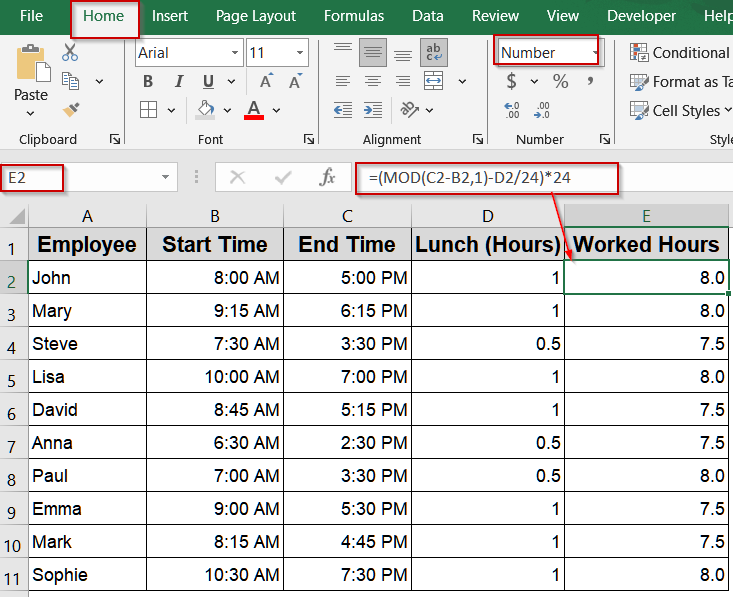
This calculation correctly handles shifts that cross midnight while automatically deducting the lunch break, giving reliable results for all employees.
Display Worked Hours Minus Lunch in Hours and Minutes
For better readability, it’s often helpful to see total worked time broken down into hours and minutes rather than as a decimal. This method converts Excel’s day fractions into a clear “X Hrs. Y Mins.” format, making it easy for managers and employees to quickly understand work duration. It also automatically deducts lunch hours for accurate reporting.
Steps:
➤ Enter start time in column B, end time in column C, and lunch hours in column D.
➤ Select a blank cell where you want the result.
➤ Enter the formula:
=TEXT(C2-B2-D2/24,"h"" Hrs. ""m"" Mins.""")
➤ Press Enter.
➤ Drag the fill handle down to apply the formula to all rows.
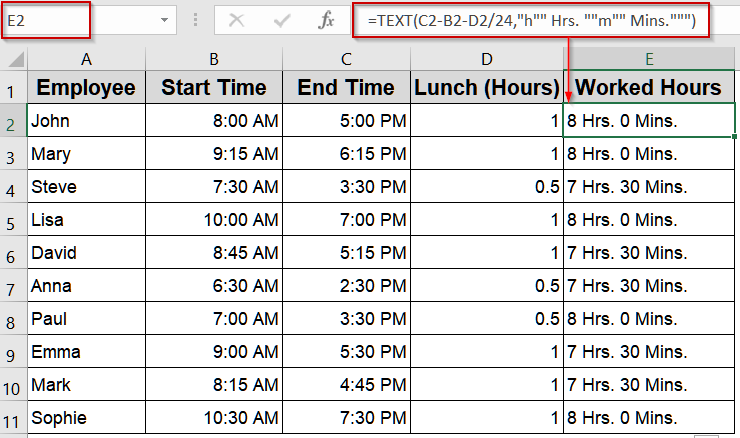
This method provides a clear, human-readable display of worked hours and minutes while subtracting lunch breaks automatically, making timesheets and reports easier to interpret.
Subtract Lunch Hours Directly to Calculate Worked Time
If lunch breaks are already recorded in hours, the simplest approach is to directly subtract them from total worked hours. This method is straightforward, quick, and ideal for standard office schedules or production environments where start time, end time, and lunch duration are clearly defined. It provides an easy way to calculate net working hours without complex formulas.
Steps:
➤ Enter start time in column B, end time in column C, and lunch hours in column D.
➤ Select a blank cell where you want the total worked hours.
➤ Enter the formula:
=(C2-B2)*24-D2
➤ Press Enter.
➤ Drag the fill handle down to apply the formula to all rows.
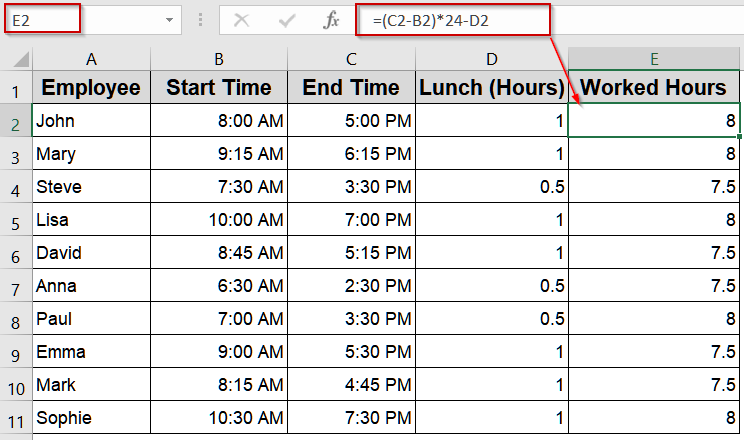
This method quickly calculates net worked hours while accounting for lunch, making it perfect for simple timesheets and daily reporting.
Downloadable Resources
Get our practice workbook or necessary files that we have worked with to prepare this article.
Formula to Calculate Hours Worked Minus Lunch.xlsx
Frequently Asked Questions
Can these formulas handle overnight shifts?
Yes, formulas using the MOD function or carefully structured time differences correctly calculate hours worked even when shifts cross midnight, preventing negative values or errors in Excel calculations.
How do I display hours and minutes instead of decimals?
You can use the TEXT function to convert decimal hours into a readable format like “8 Hrs. 30 Mins” which makes it easy to interpret working hours in standard hours-and-minutes notation.
Do I need to enter lunch hours in decimal or time format?
Lunch hours can be entered as decimals (e.g., 1 for one hour) or as a time value (e.g., 1:00) in Excel. Ensure the formulas match the format to correctly subtract breaks from total work hours.
Can I sum multiple employees’ hours automatically?
Yes, you can use the SUM function on the calculated net hours column to get total working hours for all employees, ensuring that lunch and breaks are already accounted for in the summed total.
How do I format results in 24-hour vs 12-hour display?
Multiply the time difference by 24 for hours and format the cell as Number for 24-hour totals. For 12-hour formatting, ensure Excel time formatting uses AM/PM settings which you can access from the Home tab.
Wrapping Up
In this tutorial, we covered four practical methods to calculate hours worked minus lunch in Excel. Whether your team works standard, split, or overnight shifts, these formulas help you track net hours accurately, ensuring payroll and productivity calculations are reliable. Feel free to download the practice file and share your feedback.