Calculating hours and minutes for payroll in Excel is a crucial task for HR teams, accountants, and business managers. Accurate time tracking ensures employees are paid correctly, helps avoid payroll errors, and simplifies reporting. Excel offers a variety of functions and formulas to handle both simple and complex time calculations efficiently.
In this article, we will explore seven practical methods to calculate hours and minutes for payroll in Excel. From straightforward subtraction to more advanced techniques using TEXT, HOUR, MINUTE, TIME, MOD, and IF functions. Let’s get started.
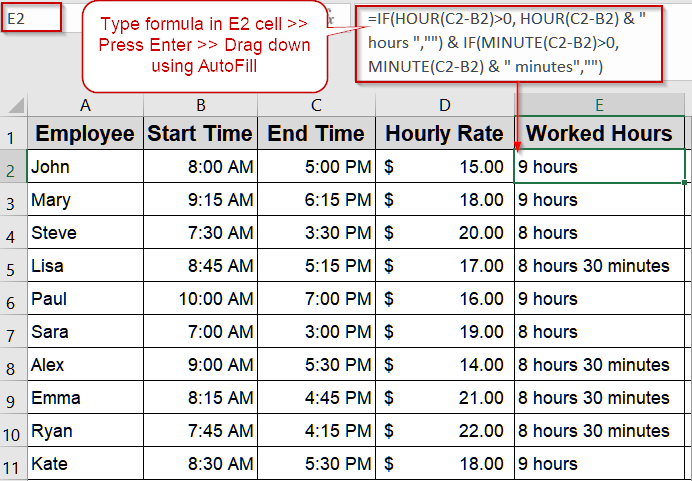
Steps to calculate hours and minutes for payroll in Excel:
➤ Ensure Start Time is in B2 and End Time in C2.
➤ In a new column (e.g., E2), enter the formula:
=IF(HOUR(C2-B2)>0, HOUR(C2-B2) & ” hours “,””) & IF(MINUTE(C2-B2)>0, MINUTE(C2-B2) & ” minutes”,””)
➤ Press Enter and drag down for all rows.
Basic Subtraction in Excel to Calculate Hours and Minutes Worked
For payroll, the simplest way to find how many hours an employee worked is by subtracting the start time from the end time. This method gives a direct measure of worked hours, ideal for straightforward daily shifts or standard office hours. Accurate subtraction ensures payroll is computed correctly and serves as the basis for more advanced calculations.
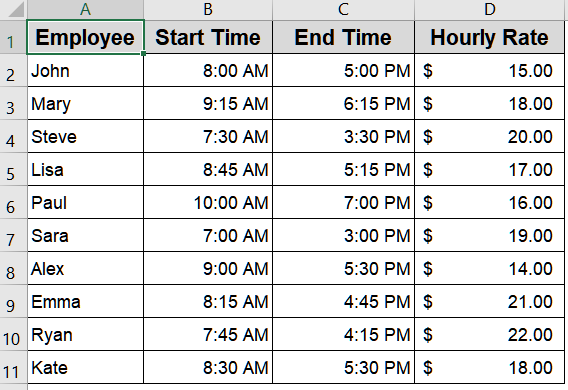
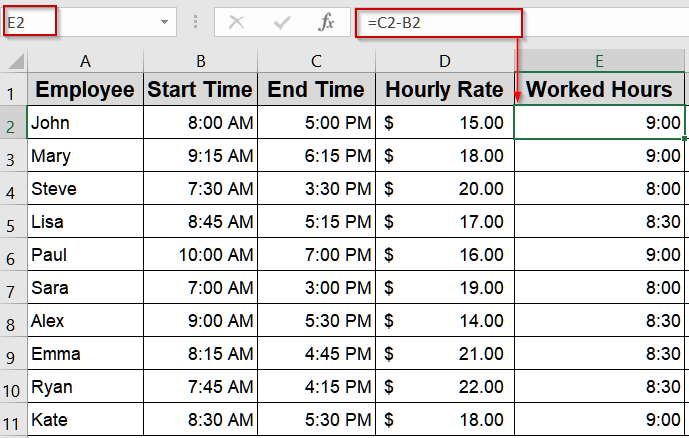
We’ll use the following dataset:
Steps:
➤ Ensure your dataset includes Start Time in B2, End Time in C2, and Hourly Rate in D2.
➤ In a new column (e.g., E2), enter the formula:
=C2-B2
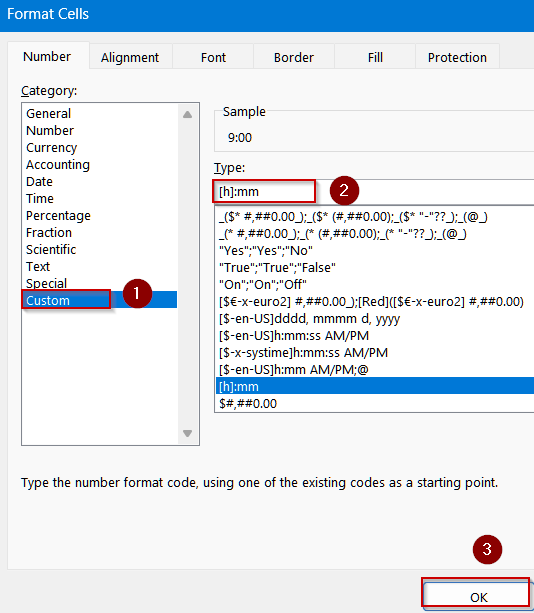
➤ Open the Format Cells tab using Ctrl + 1 . Select Custom >> Type [h]:mm to display hours and minutes correctly and click OK.
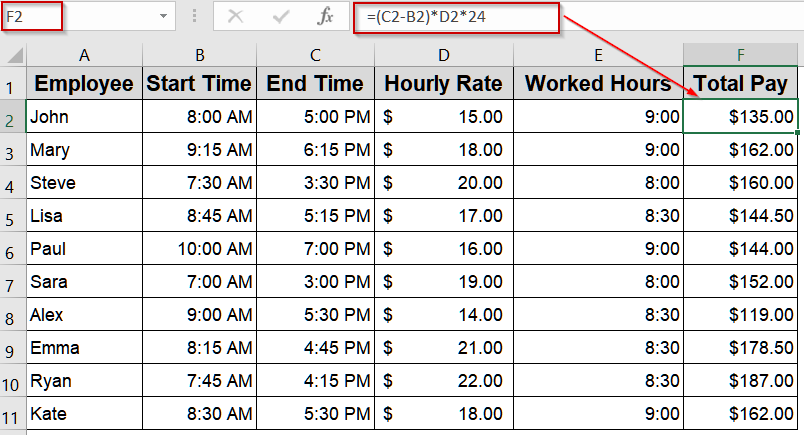
➤ To calculate pay, multiply the elapsed time by the hourly rate in F2 cell:
=(C2-B2)*D2*24
➤ Press Enter and drag the fill handle down for all rows.
Insert IF Function to Display Hours and Minutes in Text Format
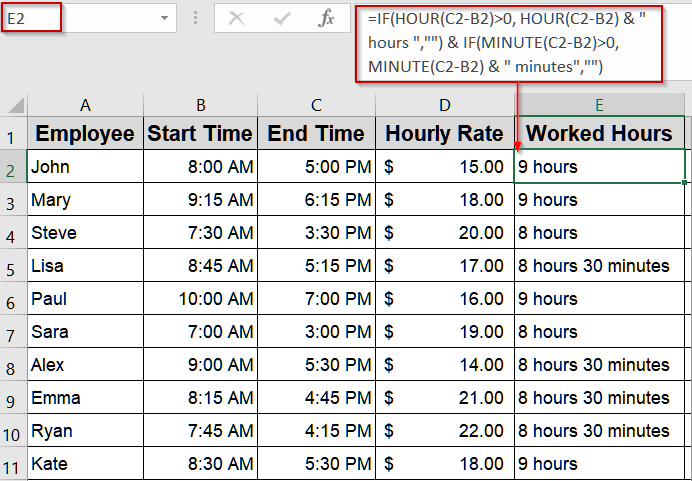
For timesheets that need clear, readable text such as “8 hours, 30 minutes,” combining IF with HOUR and MINUTE functions produces results that are easy to interpret, making payroll sheets more visually understandable.
Steps:
➤ Ensure Start Time is in B2 and End Time in C2.
➤ In a new column (e.g., E2), enter the formula:
=IF(HOUR(C2-B2)>0, HOUR(C2-B2) & " hours ","") & IF(MINUTE(C2-B2)>0, MINUTE(C2-B2) & " minutes","")
➤ Press Enter and drag down for all rows.
Applying the TEXT Function for Readable Hours and Minutes
When reporting payroll or presenting timesheets, a readable format can be more user-friendly than raw Excel time values. The TEXT function converts the difference between start and end times into a clear “Hours:Minutes” format, making it easier to review and present work durations.
Steps:
➤ Ensure your dataset includes Start Time in B2 and End Time in C2.
➤ In a new column (e.g., E2), enter the formula:
=TEXT(C2-B2,"h:mm")
➤ Press Enter and drag down using the AutoFill handle.
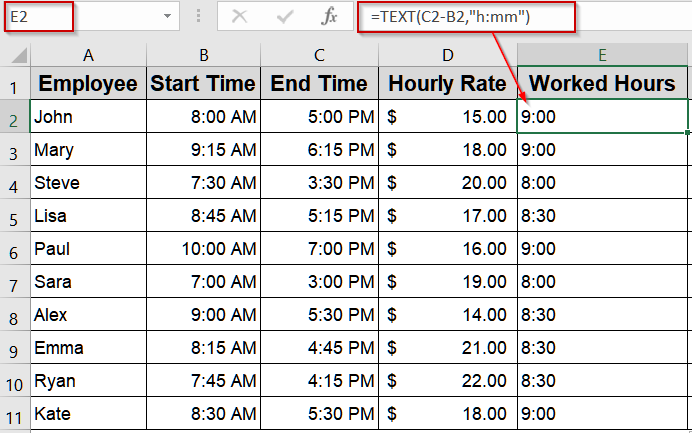
Now the former part represents hours worked and the later part shows the number of minutes.
Extracting Hours and Minutes Separately Using HOUR and MINUTE Functions
Sometimes payroll requires knowing hours and minutes individually, for example, to calculate fractional pay accurately. Using the HOUR and MINUTE functions allows granular control and flexibility when computing elapsed time and converting it into a total payable amount.
Steps:
➤ Ensure your dataset includes Start Time in B2, End Time in C2, and Hourly Rate in D2.
➤ Extract hours by entering this formula in E2 cell:
=HOUR(C2-B2)
➤ Extract minutes by entering this formula in F2 cell:
=MINUTE(C2-B2)
➤ To calculate total pay including minutes as a fraction of an hour, enter this formula in G2 cell:
=(HOUR(C2-B2) + MINUTE(C2-B2)/60) * D2
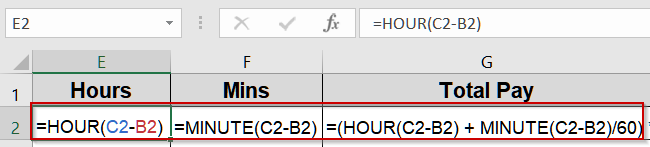
➤ Press Enter and drag down for all employees using the AutoFill handle.
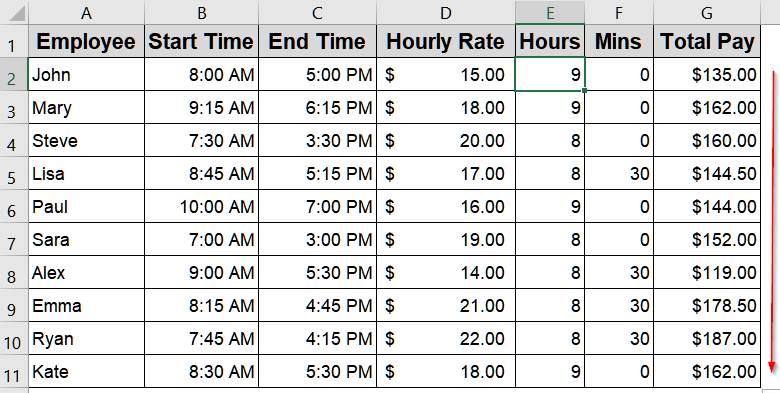
Using the TIME Function for Custom Calculations
For shifts that might cross midnight or involve precise time segments, the TIME function can be used to reconstruct hours, minutes, and seconds, allowing more controlled elapsed time calculations. This is helpful for industries where work periods span multiple time blocks.
Steps:
➤ Ensure Start Time is in B2 and End Time in C2.
➤ Select your output cell like E2 >> Open the Format Cells tab using Ctrl + 1 . Select Custom >> Type [h]:mm to display hours and minutes correctly and click OK.
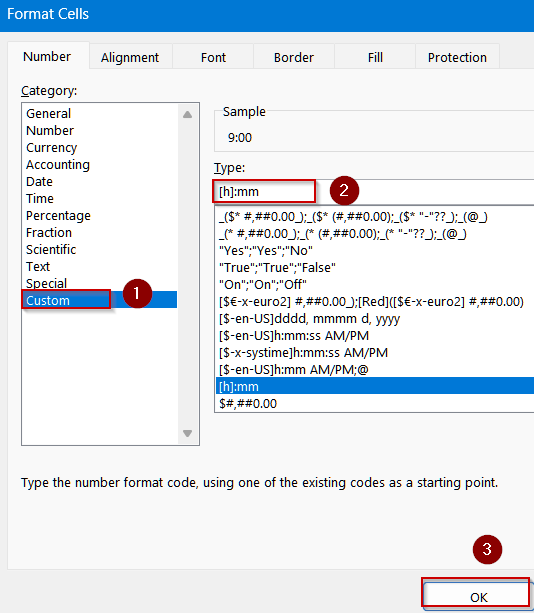
➤ In a new column (e.g., E2), type the formula:
=TIME(HOUR(C2), MINUTE(C2), SECOND(C2)) - TIME(HOUR(B2), MINUTE(B2), SECOND(B2))
➤ Press Enter and drag down for all rows.
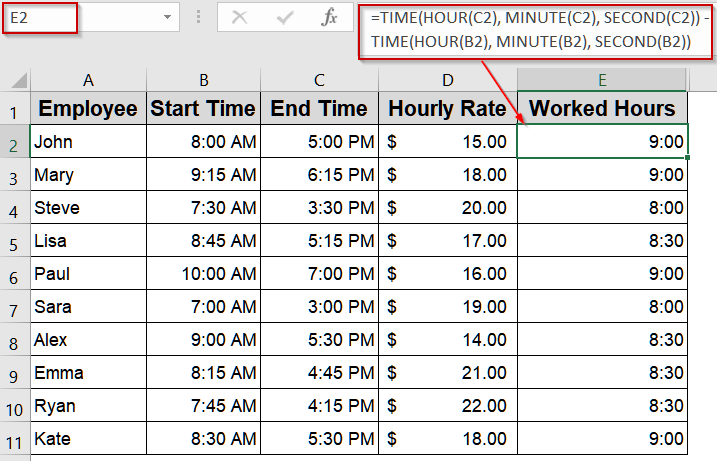
Now the former part represents hours worked and the later part shows the number of minutes.
Handling Overnight Shifts with MOD Function
Employees working late-night or overnight shifts can produce negative results when using standard subtraction. The MOD function solves this by ensuring elapsed time is always positive, making payroll calculations accurate regardless of shift timing.
Steps:
➤ Ensure Start Time is in B2 and End Time in C2.
➤ Select your output cell like E2 >> Open the Format Cells tab using Ctrl + 1 . Select Custom >> Type [h]:mm to display hours and minutes correctly and click OK.
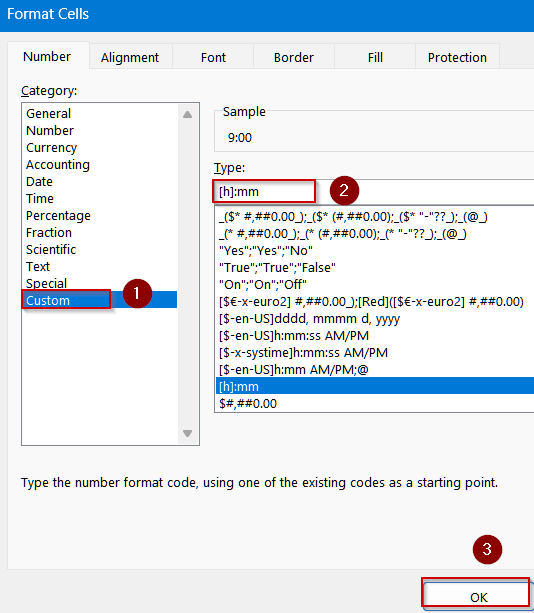
➤ In a new column (e.g., E2), type the formula:
=MOD(C2-B2,1)
➤ Press Enter and drag down for all employees.
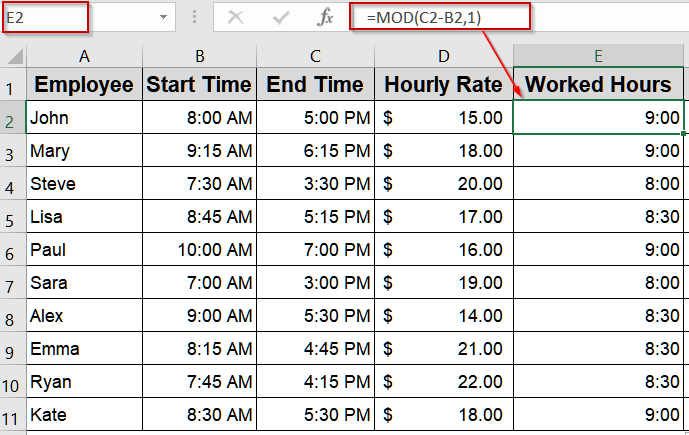
Now the former part represents hours worked and the later part shows the number of minutes.
Calculating Elapsed Time Using NOW Function
When payroll or attendance requires monitoring ongoing shifts, the NOW function can calculate elapsed hours up to the current moment. This is particularly useful for live tracking or dynamic dashboards. We’ll use the following dataset:
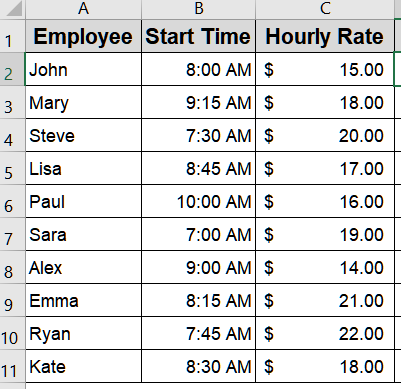
Steps:
➤ Ensure Start Time is in B2.
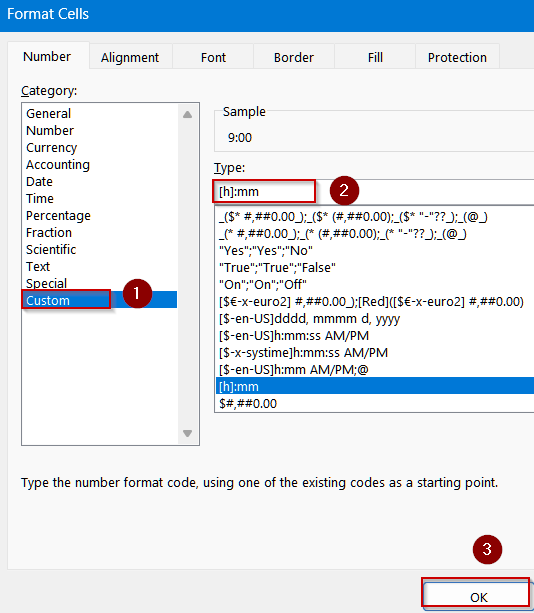
➤ Select your output cell like E2 >> Open the Format Cells tab using Ctrl + 1 . Select Custom >> Type [h]:mm to display hours and minutes correctly and click OK.
➤ In a new column (e.g., D2), enter the formula:
=MOD(NOW(),1)-B2
➤ Press Enter and drag down for all rows.
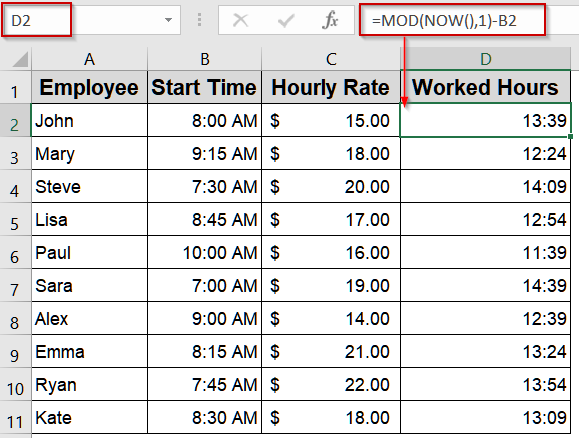
Now this displays the worked hours till the present time of the day.
Downloadable Resources
Get our practice workbook or necessary files that we have worked with to prepare this article.
Calculate Hours and Minutes for Payroll.xlsx
Frequently Asked Questions
Can Excel calculate work hours across midnight shifts?
Yes, using the MOD function, Excel can handle overnight shifts. By applying =MOD(EndTime-StartTime,1), negative values are avoided, ensuring accurate hours and minutes even when employees work past midnight.
How do I include lunch breaks in payroll calculations?
To account for breaks, subtract the break duration from total hours worked. For example, =(EndTime-StartTime)-BreakTime calculates net work hours. Format as [h]:mm to display hours and minutes correctly.
Which method is best for readable time formats?
The TEXT function is ideal for displaying hours and minutes in a clear format. For example, =TEXT(EndTime-StartTime,”h:mm”) converts Excel’s time values into a user-friendly “hours:minutes” format.
Can I calculate payroll pay directly from hours worked?
Yes, multiply total hours by the hourly rate. For example, =(HOUR(EndTime-StartTime)+MINUTE(EndTime-StartTime)/60)*HourlyRate calculates accurate pay including fractional hours, ideal for detailed payroll sheets.
How can I track work hours in real-time?
Use the NOW function to calculate elapsed time up to the current moment: =NOW()-StartTime. Format as [h]:mm to display hours and minutes. This is useful for ongoing shifts or live tracking.
Wrapping Up
In this tutorial, we covered multiple ways to calculate hours and minutes for payroll in Excel, ensuring accuracy and flexibility for different work scenarios. Whether you’re dealing with standard shifts, overnight work, or live tracking, these methods allow you to compute employee hours efficiently. Feel free to download the practice file and share your feedback.