Microsoft Excel continues to be one of the most dependable and adaptable tools for organizing and analyzing time data. Knowing the number of hours worked, spent, or allocated for an employee is crucial for handling payroll, charging clients, organizing projects, and assessing productivity. If unpaid breaks come out of those figures, see our Excel formula to calculate hours worked minus lunch.
However, managing time in Excel isn’t always simple. Formatting or formula errors might produce confusing results since Excel records time as a fraction of a 24-hour day. So, we need to learn the correct procedure of doing this.
There are two parts to it. To calculate the hours in a single row you subtract the start time from the end time, and =MOD(C2-B2,1) handles that even when the shift runs past midnight – there is more on that single-row case in how to calculate the difference between two times. To count or sum those hours into a weekly total you use =SUM() and then apply the [h]:mm custom format, which is the step that stops the total resetting to zero after a full day. Both are covered below.
➤ Firstly, select all the columns containing the time values and right click on it.
➤ Go to Format Cells > Number > Time and select the 1:30 or 13:30 option to show the time as HH:MM format.
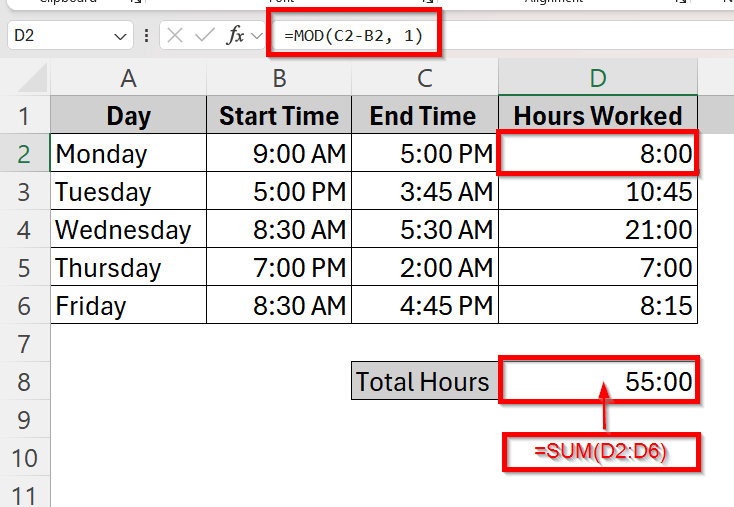
➤ In the cell D2, type the formula =MOD(C2-B2, 1) and drag it to apply to the whole column.
➤ Use =SUM(D2:D6) in the Total Hours cell to add up every day’s hours.
➤ Then right-click that cell, go to Format Cells > Custom and type [h]:mm in the Type box. Without this the total resets after 24 hours and a 55-hour week displays as 7:00 – see how to add time in Excel over 24 hours for more on that format.
Quick Video Tutorial: Calculate Total Hours in Excel
Prerequisite Task: Enter Time in The Correct Format in Excel
First and foremost, to ensure that Excel handles your time data properly, the time should be entered in the correct format. The time data in Excel should always be entered in HH:MM format.
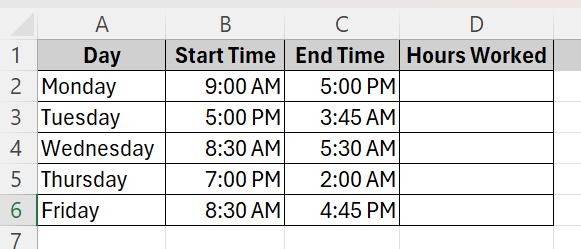
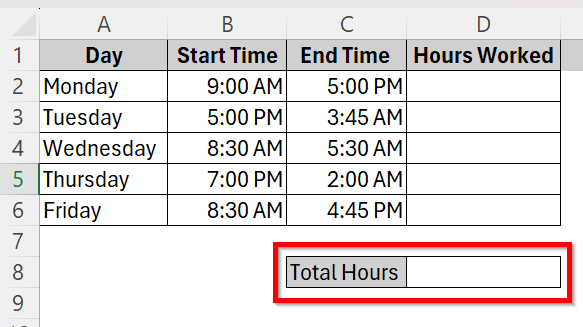
This is our sample dataset where an employee’s working hours throughout a week is documented. We need to calculate the total hours this employee has worked using Excel.
To ensure all the time data is set in the right format, we need to-
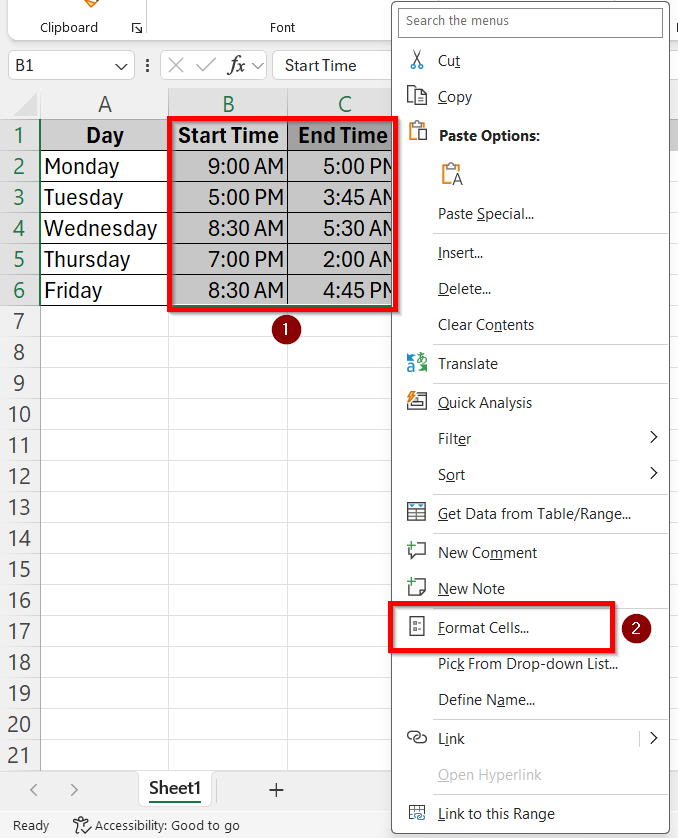
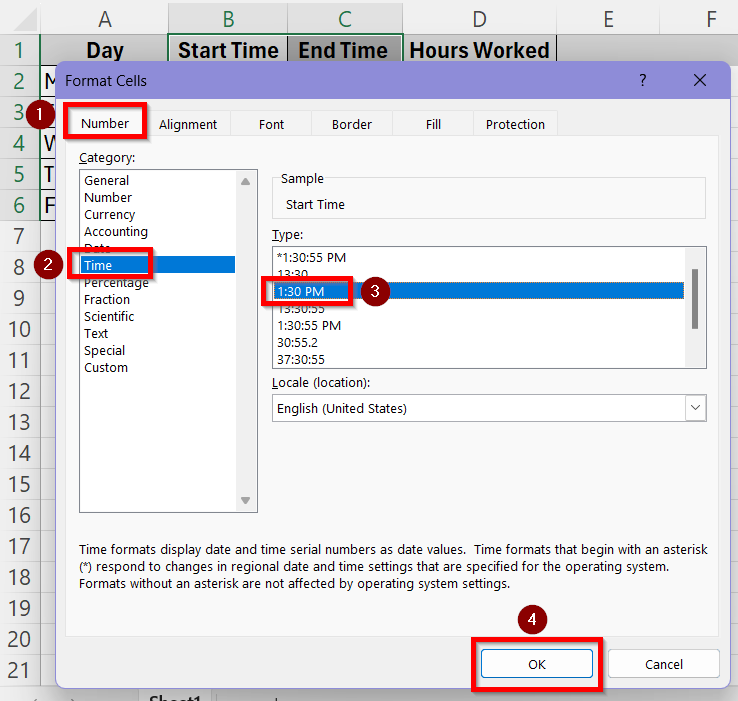
➤ Select the Start Time and End time column. Right click and select the Format Cells option from the drop-down box.
➤ In the Format Cells box, go to Number > Time and select the third 1:30 PM option to ensure the time is in HH:MM AM/PM format. You can select the second 13:30 option if you want to use the 24 hour format too. Press OK.
Calculate Total Hours Using MOD Function and Time Difference formula
Calculating the time difference between the start time and the end time is the simplest way of finding out total hours worked. However, simply using time difference is not enough to calculate the hours when the shift has crossed a 24 hour day and into the next day.
So, we use the MOD function to handle the calculation when the end time goes past midnight. Let’s take a look at how we can utilize this below:
➤ First, create a new row where we will show the result of total hours worked. Here, go to cell C8 and type Total Hours and cell D8 will show us our calculated result.
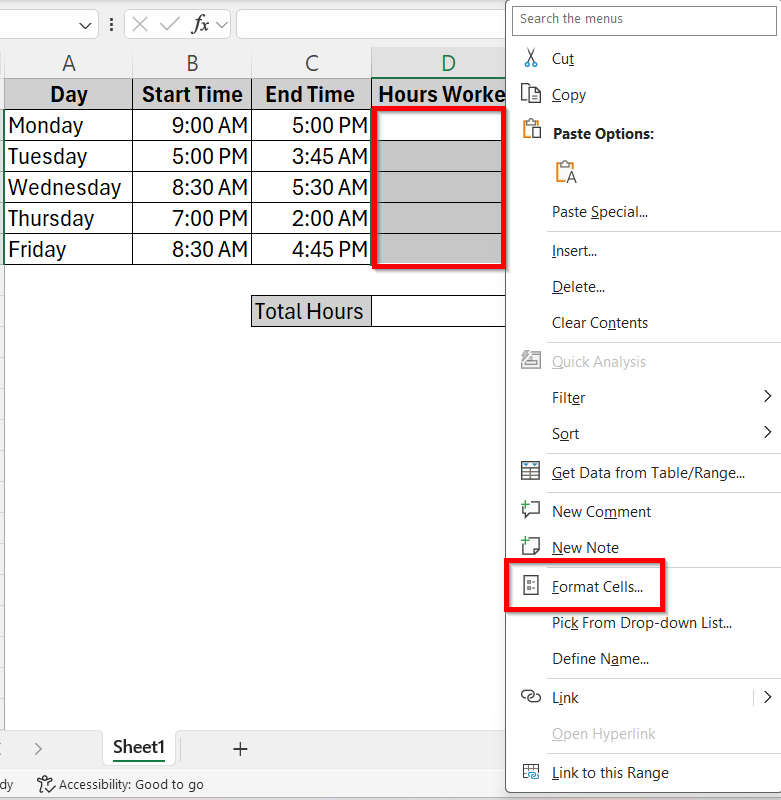
➤ Now, to fix the formatting in the Hours Worked column by selecting the cells from D2 to D6. Right click and go to Format Cells from the options.
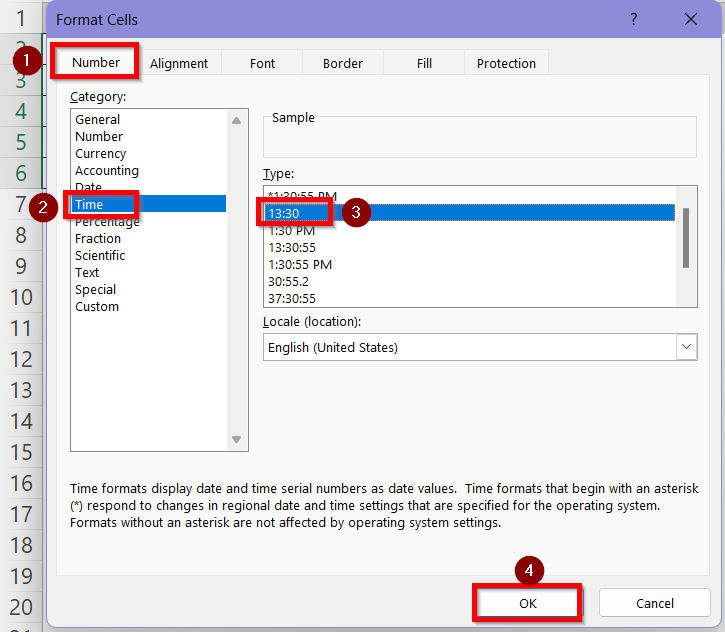
➤ In the Format Cells box, go to Number > Time and select the second option, 13:30, which is the 24-hour format. Press OK.
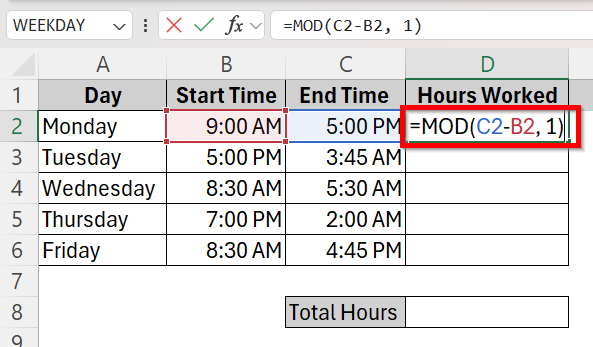
➤ Click on cell D2 and type the formula =MOD(C2-B2, 1). This calculates the total hours of work on that day (Monday).
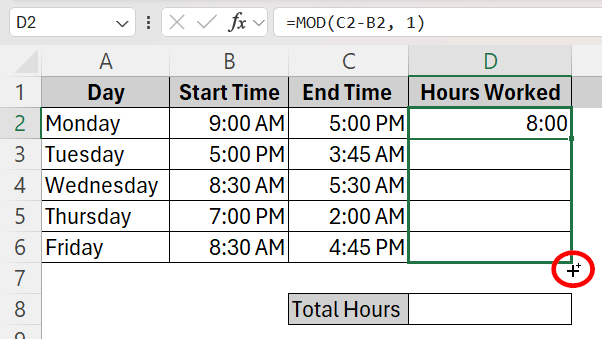
➤ Click the plus sign at the bottom right corner of cell D2 and drag it down to cell D6 to apply the formula to all the cells in the column.
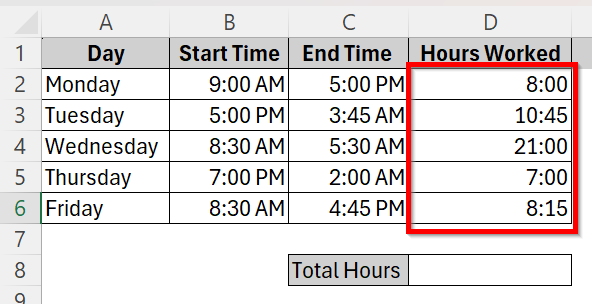
➤ This will be our resultant column where you can see the total hours of work done every single day of the week.
➤ Now, in order to calculate the total hours of work done in the whole week, click on cell D8 and type in the addition formula
=SUM(D2:D6).
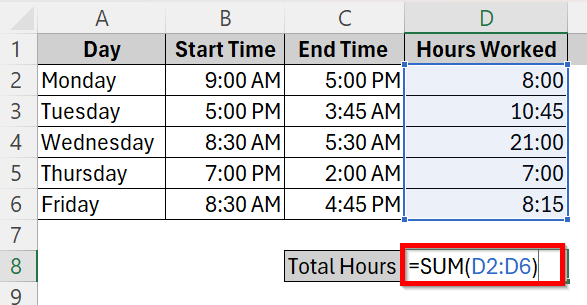
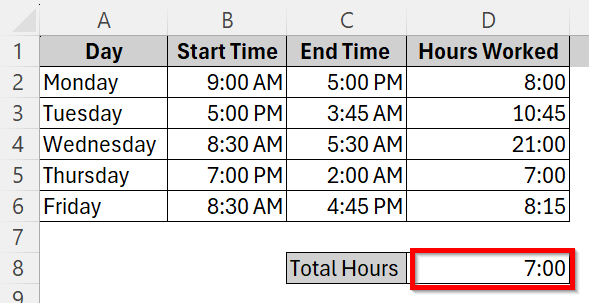
➤ The result will show like this- 7 hours which is clearly incorrect. Now, to show total hours correctly over 24 hours, we must use a custom format.
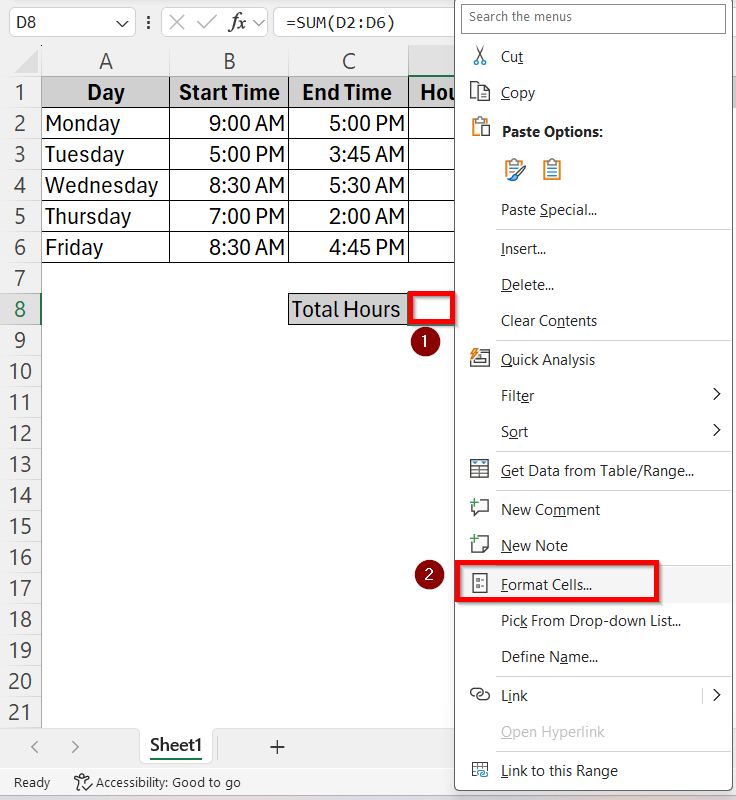
➤ Right click on cell D8 and select the Format Cells option.
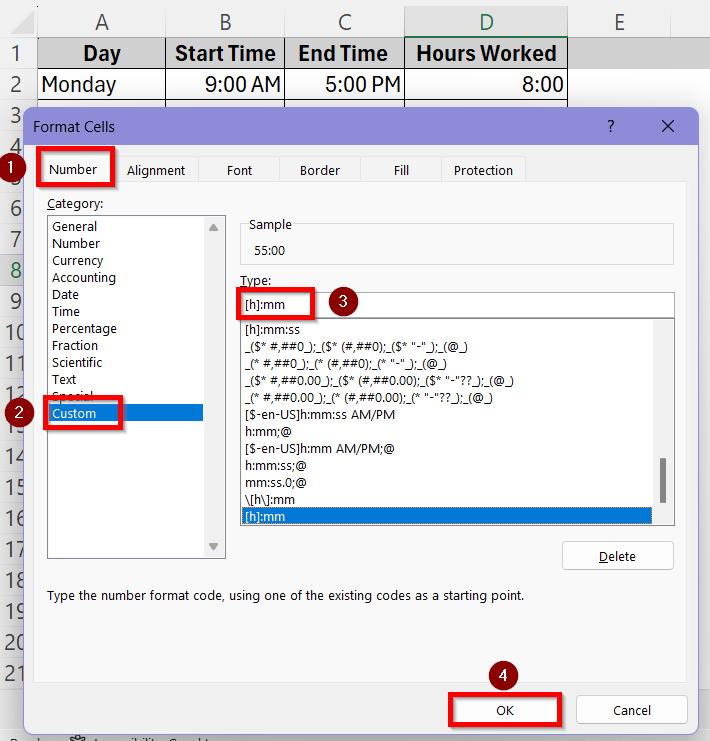
➤ In the Number tab, go to Custom. Type a custom format [h]:mm under the Type box and press OK.
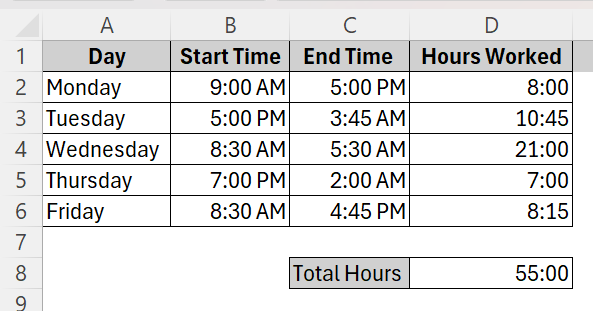
➤ Now, the total hours will show up accurately which is 55 hours.
Calculate Total Hours Using TEXT Function
You can also use the TEXT function to display hours worked, with two things to know before you do. Shifts that cross midnight still fail, because the subtraction goes negative – wrap it as =TEXT(MOD(C2-B2,1),”h:mm”) if you need those. And “h:mm” quietly wraps at 24 hours rather than raising an error, so 36 hours would display as 12:00; use “[h]:mm” instead whenever a figure could exceed a day.
The important limitation is what TEXT returns: a text string, not a time value. SUM treats text as zero, so summing a column of TEXT results gives 0, not a total. Use this method when you want a tidy per-row display, and keep Method 1 for anything you need to add up.
The process of using the TEXT function is described below:
➤ Click on cell D2 and type in the TEXT formula
=TEXT(C2-B2,”h:mm”)
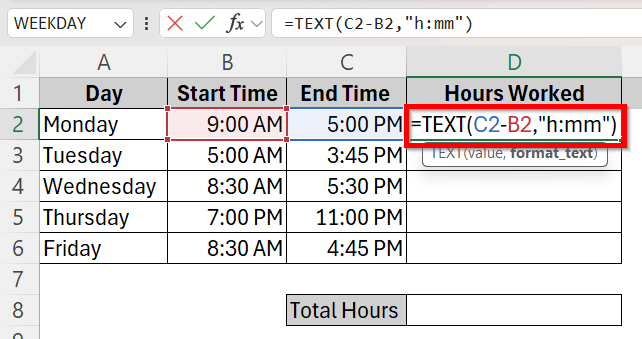
➤ Click the plus sign at the bottom right corner of cell D2 and drag it down to cell D6 to apply the formula to all the cells in the column.
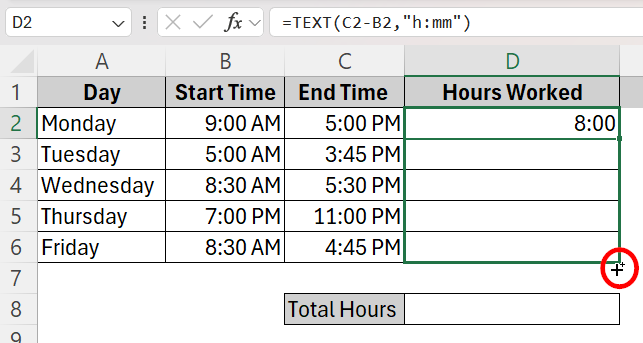
➤ This will be our resultant column where you can see the total hours of work done every single day of the week.
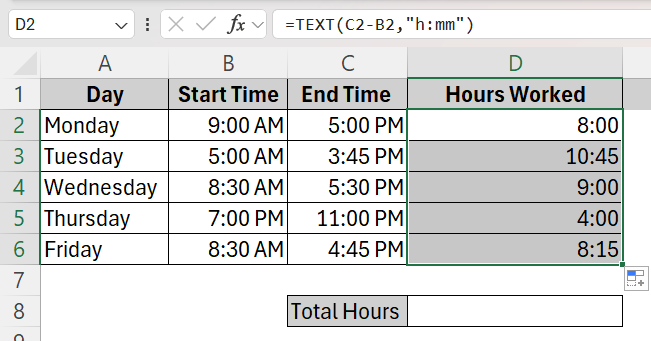
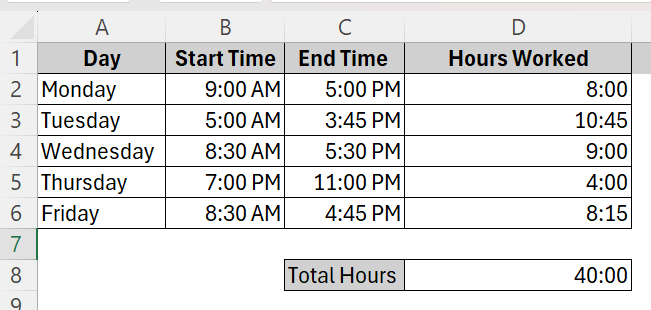
➤ To total this column you cannot use =SUM(D2:D6) – these are text strings and SUM reads them as zero. Use =SUMPRODUCT(TIMEVALUE(D2:D6)) in cell D8 and apply the [h]:mm custom format to it, or simply build the total from Method 1’s numeric column instead.
Use Conditional Formula to Calculate Total Hours In Overnight Shifts
We can’t use the direct time difference formula =C2-B2 or the TEXT function when the shift has crossed midnight. Apart from MOD function, another method in this case would be constructing a custom formula for the calculation. We have described the proper steps below:
➤ Click on cell D2 and type the formula =IF(C2<B2,C2+1,C2)-B2 – this checks whether the end time is technically earlier, meaning it falls on the next day, and adds a day before subtracting so the total comes out right. The overnight case is covered in more depth in how to calculate hours between two times after midnight.
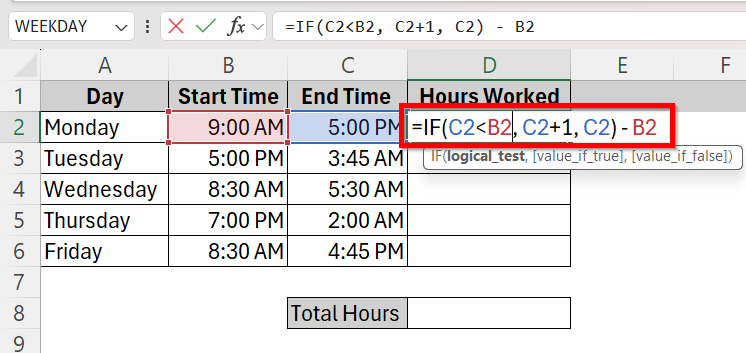
➤ Click and drag to apply the formula to all the cells and get the total hours result.
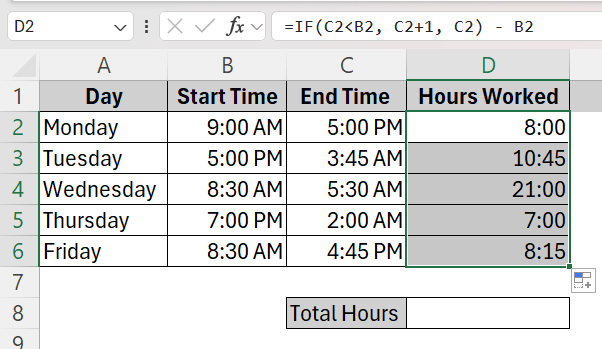
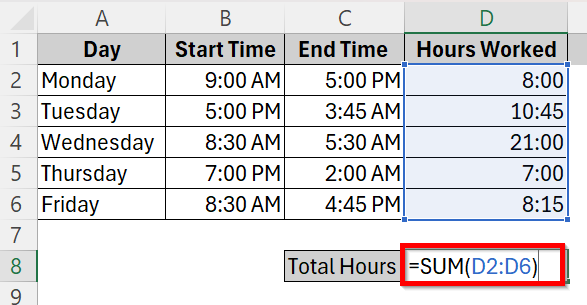
➤ In order to calculate the total hours of work done in the whole week, click on cell D8 and type in the addition formula
=SUM(D2:D6)
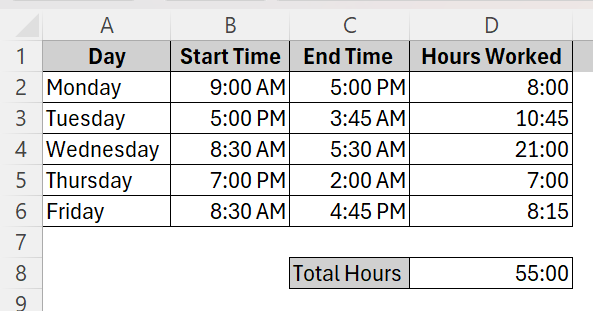
➤ Now, the total hours of the entire week will show up which is 55 hours.
Downloadable Resources
Get our practice workbook or necessary files that we have worked with to prepare this article.
Frequently Asked Questions
Why isn’t my SUM of time values adding up correctly?
You have to make sure the column you are applying the SUM function in, has all time formats instead of text formats for it to work. If they are not already in real time values, format the column with [h]:mm using the Format Cells > Custom box.
What Formula Should I Use if the Workshift Goes Past Midnight?
When the workshift begins at PM and goes past 12 AM on the same day, Excel messes up the calculation in the typical time difference formula. To fix this, use =IF(EndTime<StartTime,EndTime+1,EndTime)-StartTime, or the shorter =MOD(EndTime-StartTime,1) which does the same job.
Can I See The Total Time in Decimals Instead of Time Format?
Yes, but reformatting alone will not do it. Excel stores 8:30 as 0.354167 of a day, so switching the cell to Number with two decimals shows 0.35, not 8.5. Multiply by 24 first: put =SUM(D2:D6)*24 in the total cell, or =(C2-B2)*24 for a single row, then format that cell as Number. Now 8:30 reads as 8.5 hours, and because the value is a plain number it never wraps at 24 the way a time format does.
Wrapping Up
Excel provides a range of versatile tools to make time tracking precise and effective. From managing overnight shifts to presenting totals beyond 24 hours using formats like [h]:mm, you have all the options to choose what you want to use. You can stay clear of typical errors and make efficient use of functions and formulas like MOD, TEXT, and SUM by being aware of how Excel saves and manages time now.
If these totals are feeding a pay run, the rounding and formatting rules differ slightly – see how to calculate hours and minutes for payroll. Choose whichever method works the best for you and let us know your feedback!