For scheduling tasks, it is often needed to calculate the hours between two times. Calculating the difference between two values of time is easy using the minus (-) operator. However, that does not work when the time goes past midnight. In this article, we will learn how to calculate hours between two times after midnight in excel.
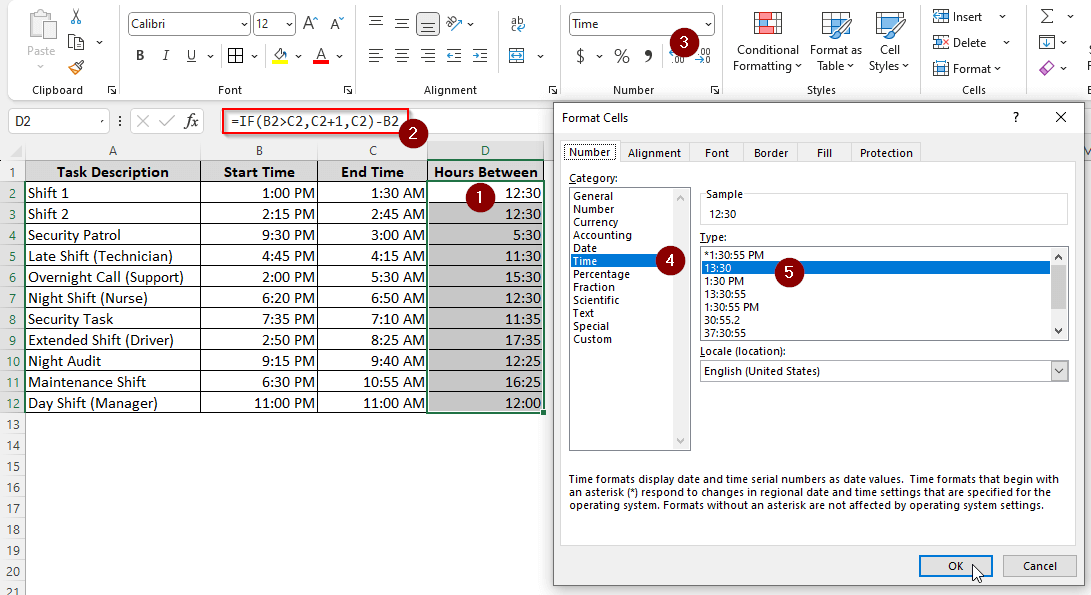
➤ Take a helper column to calculate the hours.
➤ Write this formula:
=IF(B2>C2,C2+1,C2)-B2
➤ Replace B2 with the first time, and C2 with the second time.
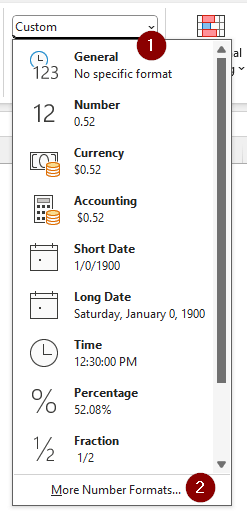
➤ From the Home tab, go to Number > More Number Formats….
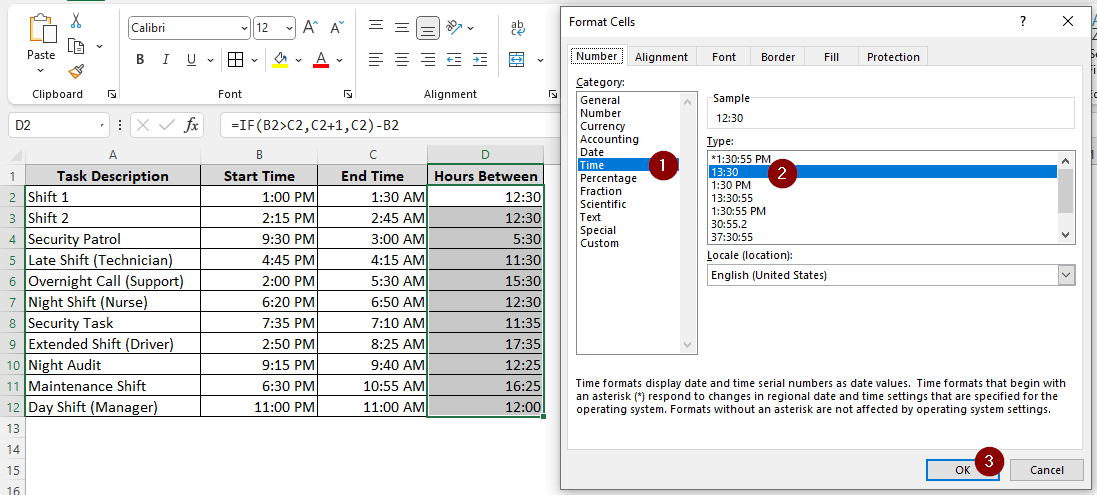
➤ Set the cell format to Time > 13:30
That was a quick summary of the method. But I am sure you want to learn more about how the formula works. Keep reading for a detailed lesson on the functions so that you understand and don’t just have to memorize the method.
Steps to Calculate Hours Between Two Times After Midnight In Excel
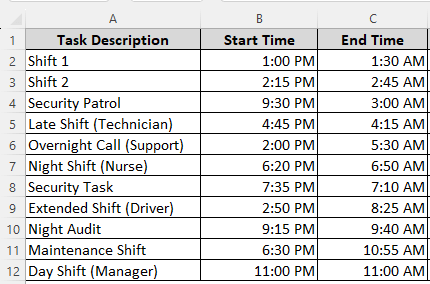
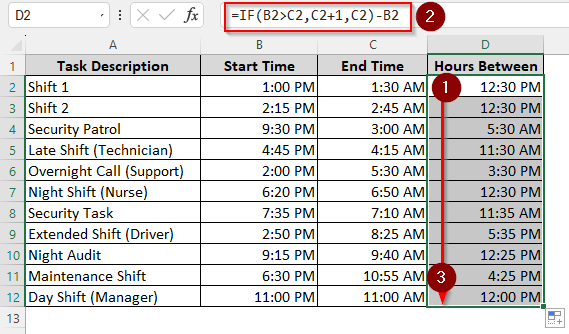
In this practice dataset, we have some task schedules, with the task description and the start/end time. We want to extract the number of hours in between. The steps below should do it:
Step 1: Add a Helper Column
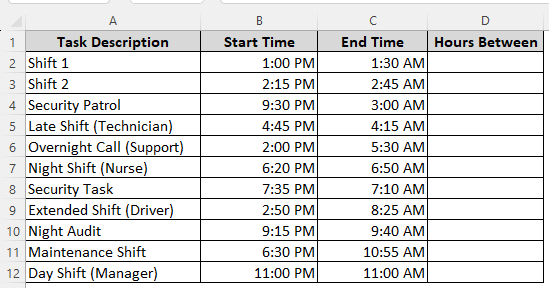
➤ We are taking the rightmost column and adding the header ‘Hours Between’ to it.
➤ Choosing a column with the same rows makes it easier to autofill and read the answers.
Step 2: Use the Formula
➤ Under the heading of the newly created column, use this formula:
=IF(B2>C2,C2+1,C2)-B2
➤ Autofill the other cells with the same formula.
Step 3: Set Number Format
➤ After inserting the formula from before, excel should sort the new cells as custom. We need to set this to the Time format to make the data make sense.
➤ Select the cells of the new column, other than the heading.
➤ From the Number section, open the dropdown menu, and select More Number Formats…
➤ From the new dialog box, select Time from the left pane, 13:30 from the right pane, and press OK.
➤ The data in the new column should make sense now.
Downloadable Resources
Get our practice workbook or necessary files that we have worked with to prepare this article.
Calculate Hours Between Two Times after Midnight.xlsx
Frequently Asked Questions
How to calculate hours between two times in Excel?
Use this formula:
=TEXT(C2 – B2, “h”)
Replace C2 with the second time and B2 with the first time.
How do you check if a time is between two times in Excel?
Enter this formula:
=IF( MEDIAN(B2,B2+MOD(C2-B2,1),D2) = D2, ” O”, “” )
Here, B2 is your start time, C2 is the second time, and D2 is the time that should be checked to see whether it is between or not.
How do you randomly time between two times in Excel?
This formula should suffice:
=RAND()*(C2-B2)+B2
Replace C2 with the higher (later) time, and B2 with the lower time.
What is the formula for hours between two times decimal in Excel?
Here is the formula:
=(C2-B2)*24
Here, B2 should be replaced with the first time, and C2 with the second one.
How to calculate the difference between two dates?
You can just subtract the dates, like this:
=C2-B2
In this formula, C2 should be the end date, and B2 should be the start date.
Wrapping Up
In this article, we have learned how to calculate hours between two times after midnight in excel. The practice file contains the data set used in this article, including the formula. Feel free to comment with your suggestions on what topics you want us to cover. Consider bookmarking the site if you want to learn more excel tips and tricks.