A rounded percentage in Excel is simply a percentage value shortened to fewer decimal places, making it easier to read and present. For example, instead of showing 87.4567%, you might round it to 87.00% or 87.46% depending on the level of accuracy you need.
Rounding to the nearest whole percent means dropping the decimals entirely so 87.4567% becomes 87%, while rounding to two decimal places keeps 87.46%. Rounding percentages is useful when preparing reports, dashboards, or presentations, where too many decimal places can look cluttered. It also helps standardize your data when comparing performance metrics across different rows or columns.
In this article, you’ll learn how to round percentages in Excel step by step using different methods.
Here’s how to round percentages in Excel using the ROUND function:
➤ Open your dataset in Excel.
➤ Click on cell E2 and enter the following formula:
=ROUND(D2,2)
➤ Press Enter. Excel will round the percentage in D2.
➤ Drag the fill handle down to apply the formula to the remaining rows.
Using the ROUND Function to Round Percentage In Excel
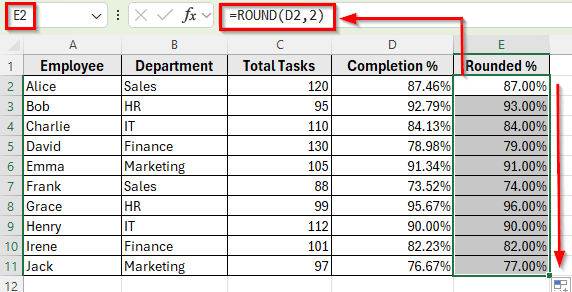
In the following dataset, we have employee performance data. Column A lists the Employee Names, Column B shows their Department, Column C contains Total Tasks, and Column D calculates Task Completion Percentage. Column E is empty, where we’ll enter formulas to round percentages.
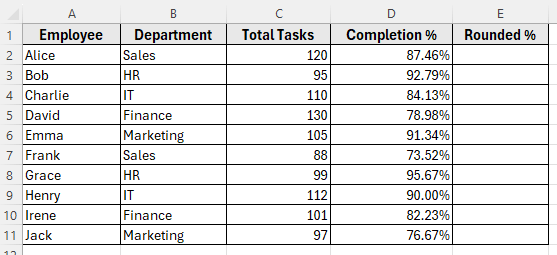
We’ll use this dataset to demonstrate different ways to round percentages in Excel.
The ROUND function is the most common way to round percentages in Excel. It allows you to set the exact number of decimal places you want to keep. One thing to watch: Excel stores a percentage as a decimal, so 87.4567% is really 0.874567, and the second argument counts decimals of that stored value rather than of the percentage you see. Add 2 to the decimals you want on screen. Use =ROUND(D2,2) for a whole percent like 87%, =ROUND(D2,3) for one decimal place like 87.5%, and =ROUND(D2,4) for two decimal places like 87.46%. If you need to control meaningful digits rather than decimal places, see how to change significant figures.
Here’s how to do it:
➤ Open your dataset in Excel.
➤ Click on cell E2 and enter the following formula:
=ROUND(D2,2)
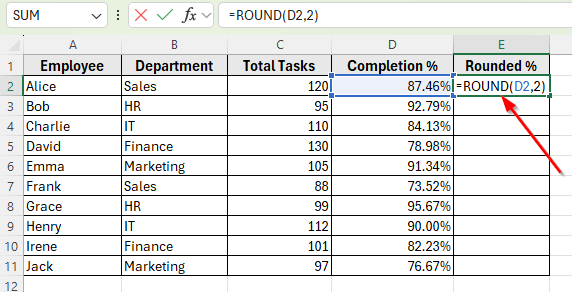
➤ Press Enter. The value in D2 will be rounded. For example: 87.46% becomes 87.00%.
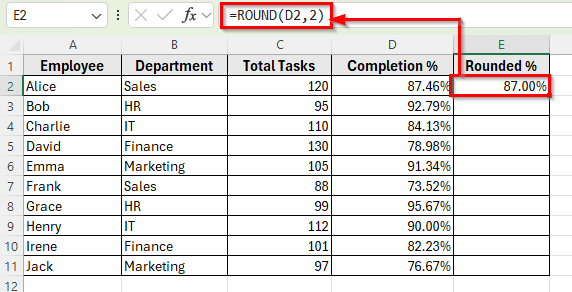
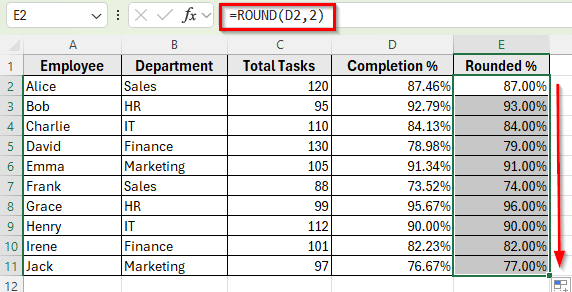
➤ Drag the fill handle down to apply the formula to the rest of the rows.
Applying the ROUNDUP Function to Round Percentages Upward
Sometimes you may want to always round percentages upward, no matter what the decimal value is. For this, Excel provides the ROUNDUP function. It’s useful when you want to ensure results never appear lower than the actual value. For example, when calculating employee performance or sales targets. The same function works on any calculation, not just percentages – see how to round up a formula result in Excel.
Here’s how to do it:
➤ Open your dataset in Excel.
➤ Click on cell E2 and enter the following formula:
=ROUNDUP(D2,2)
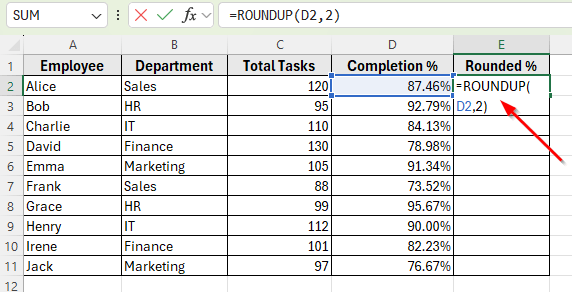
➤ Press Enter. The percentage in D2 will be rounded up. For example: 87.4567% becomes 88.00%.
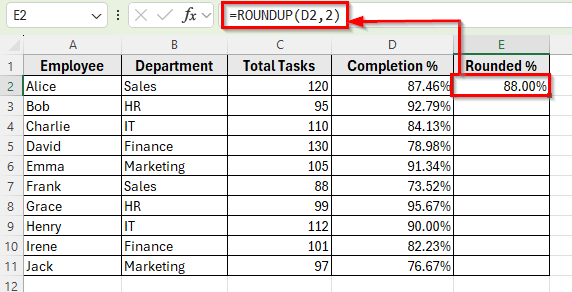
➤ Drag the fill handle down to copy the formula for the rest of the rows.
Using the ROUNDDOWN Function to Round Percentages Downward
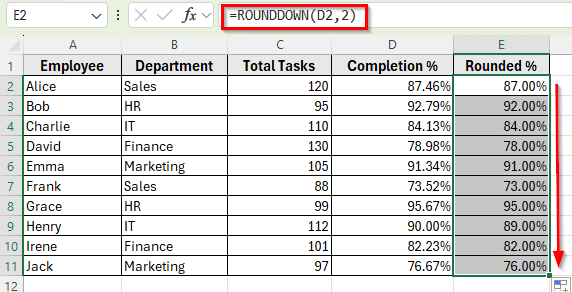
If you always want percentages to round downward, Excel has the ROUNDDOWN function. This function always rounds towards zero, so for the positive percentages in this dataset the result never exceeds the original number. With a negative percentage it moves the other way: =ROUNDDOWN(-3.27%, 2) returns -3%, which is closer to zero, not further from it. For plain numbers rather than percentages, see how to round down to the nearest whole number. It’s handy when you want to stay on the conservative side. For example, showing a minimum completion rate or setting lower benchmark values.
Here’s how to do it:
➤ Open your dataset in Excel.
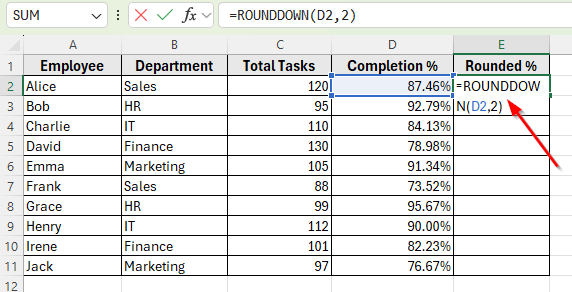
➤ Click on cell E2 and enter the following formula:
=ROUNDDOWN(D2,2)
➤ Press Enter. The percentage in D2 will be rounded down. For example: 87.46% becomes 87.00%.
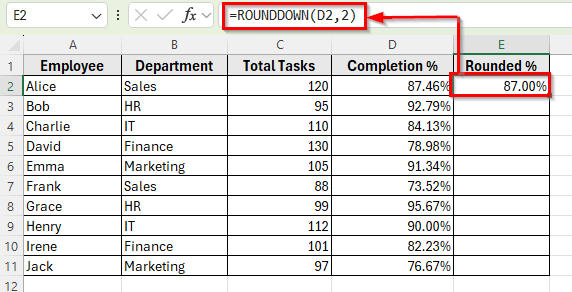
➤ Drag the fill handle down to apply the formula to the rest of the rows.
Using MROUND Function to Round to the Nearest Multiple
The MROUND function rounds percentages to the nearest specified multiple. This is useful when you want percentages to align with a fixed scale, such as rounding to the nearest 5% or 10% for easier reporting. Keep both arguments on the same side of zero: MROUND returns a #NUM! error when the number and the multiple have different signs, so =MROUND(-3.2%, 5%) fails while =MROUND(-3.2%, -5%) works.
Here’s how to do it:
➤ Open your dataset in Excel.
➤ Click on cell E2 and enter the following formula:
=MROUND(D2,5%)
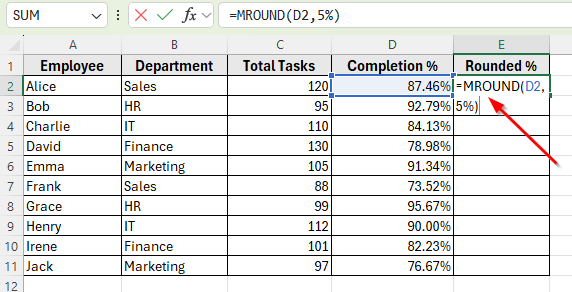
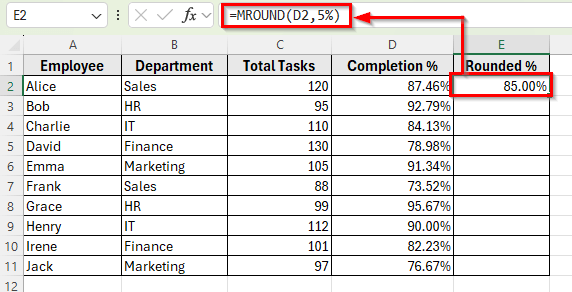
➤ Press Enter. The percentage in D2 will be rounded to the nearest multiple of 5%. For example: 87.4567% becomes 85%.
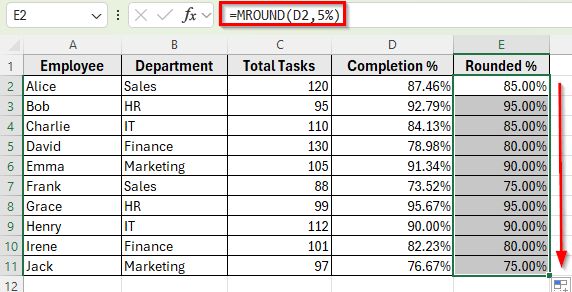
➤ Drag the fill handle down to apply the formula for the remaining rows.
Frequently Asked Questions
How do I round percentages to whole numbers in Excel?
You can use the formula =ROUND(D2,2). Excel stores a percentage as a decimal, so 87.4567% is held as 0.874567, and rounding that decimal to 2 places gives 0.87 – which a percent-formatted cell displays as 87%. Using =ROUND(D2,0) here would round 0.874567 to 1 and show 100%, so keep 2 as the second argument when you want a whole percent.
How do I round percentages to the nearest 5% in Excel?
Use the MROUND function like this =MROUND(D2,5%). The result will be 92.7% becomes 95%, and 73.5% becomes 75%.
Does rounding affect calculations in Excel?
It depends. If you use a formula like ROUND, ROUNDUP, or ROUNDDOWN, the formula returns a new, genuinely rounded value in the cell holding the formula, and any later calculation that points at that cell uses the rounded number. Your original column is untouched. If Excel is rounding when you did not ask it to, here is how to stop Excel rounding your percentages. If you only adjust formatting like Increase or Decrease Decimal, the value stays the same, only the display changes. That formatting route is covered in full in our guide to round numbers without a formula.
Wrapping Up
Rounding percentages in Excel makes data easier to read and present, especially in reports, dashboards, and performance reviews. You can apply the right function to simplify results without losing context .
Each function has its own role. ROUND is for general rounding, ROUNDUP is for higher values, ROUNDDOWN is for lower values, and MROUND helps round percentages to set multiples.
These methods help keep your spreadsheets professional and easier to interpret. Choose any method according to the type of analysis you’re doing and the level of precision you need.