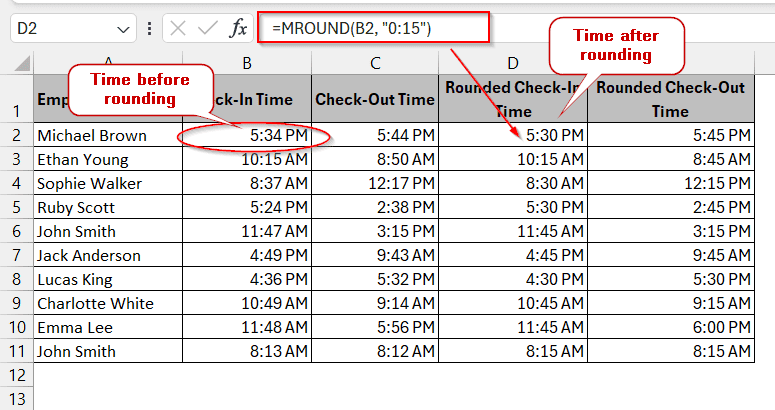
While dealing with time logs in Excel, we face a common inconsistency in time intervals. Most of the employee time logs and meeting schedules are often noted in Excel, which do not align with the proper time intervals. To reduce this complexity and keep all the times on the same ground, we can round time to the nearest 15 minutes. This process comes in handy when importing timestamps or data from other systems, eliminating manual time editing.
Steps to round time to the nearest 15 minutes in Excel with MROUND function:
➤ Click on the cell where you want to write the rounded time.
➤ Write the formula –
=MROUND(A1, “0:15”), where A1 is the cell containing time interval.
➤ Press Enter to get the rounded time.
As simple as it is, in this article, we will cover all the ways you could use to round time to the nearest 15 minutes. To do this, we will look into the built-in Excel features involving MROUND, CEILING, and FLOOR functions. In addition, an in-depth discussion about advanced tools like VBA and Power Query methods is also provided to help you decide which is the best fit for your task.
Rounding Time to Nearest 15 Minutes Using MROUND Function
Generally, MROUND is the common function used for rounding numbers or time in Excel. This function takes two parameters – the cell number and the multiplier. While converting to the nearest 15 minutes, we directly use 0:15. Behind the scenes, Excel holds a day as 1, so 15 minutes is 15/(60*24), which is approximately 0.0104166666666667. The same relationship written the other way round is 24*60/15 = 96, meaning there are 96 quarter-hour blocks in a day – that 96 is the number Method 4 uses.
Steps:
➤ Click on the cell where you want to record data
➤ Write the MROUND formula –
=MROUND(B2, “0:15”)
Here B2 is the cell which has the timestamp data.
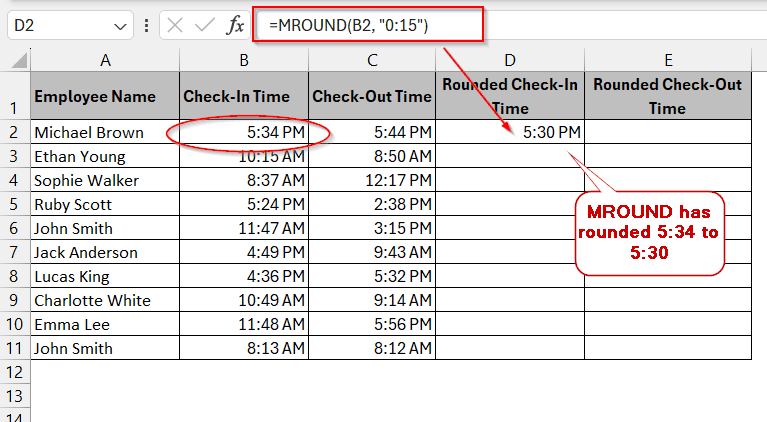
➤ Press Enter and drag down the cell to apply the same formula for the entire column.
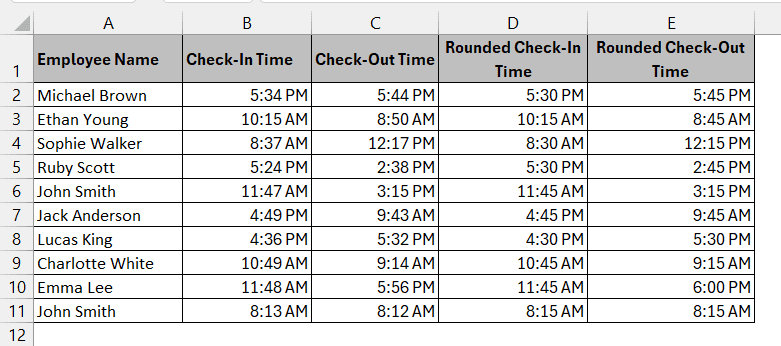
Note:
➥You can use the same formula and change the parameter to round numbers to the nearest 15 minutes.
=MROUND(B2, 15/(24*60))
➥Times that already sit on a multiple of 15 are returned unchanged, so you can run this across a whole column without checking first – =MROUND(“5:15″,”0:15”) gives 5:15. MROUND works the same way on ordinary numbers, covered in how to round up a formula result.
Using CEILING Function
Like the MROUND function, the CEILING function is also used to round the timestamps in Excel. However, the specialty of this formula is that it always rounds up. In other words, it always converts the minutes to a multiple of 15 higher than the actual one. For instance, if you have the time of 5:34, generally in MROUND, the time is converted to 5:30 as 30 is the nearest multiple of 15. But in this case, the rounded time will be 5:45 as 30 is smaller than 34, whereas 45 is larger.
Steps:
➤ Click on the cell where you want to write the rounded time.
➤ Write the following formula of the CEILING function –
=CEILING(B2, “0:15”)
Here B2 is the cell containing the time to be changed.
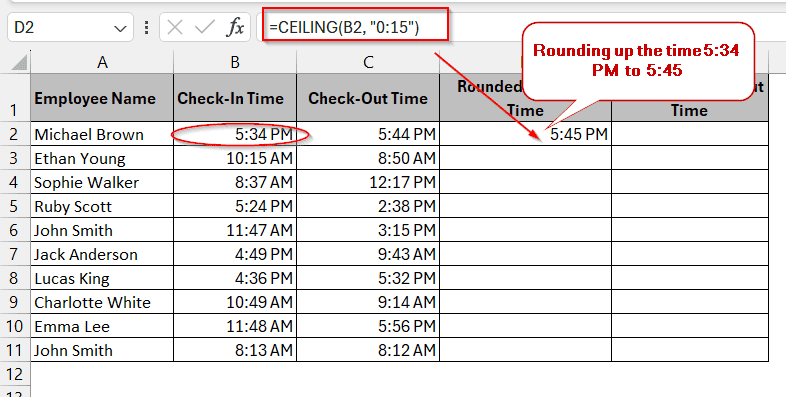
➤ Hit Enter and drag the cells to convert the entire column with the same formula.

Note:
Use when you only need to increase the time or round up. It does not work for rounding down or to the nearest one.
Applying FLOOR Function to Round Time
The FLOOR function is another form of rounding function, but unlike others, it focuses on rounding down the values. When used with timestamps, the number is always reduced to convert it to a multiple of the parameters. If the time is 5:44, the FLOOR function reduces the time to 5:30, though the nearest multiple is 45.
Steps:
➤ Click on the cell you want to store the rounded time data
➤ Use the FLOOR function formula –
=FLOOR(B2, “0:15”)
Here B2 is the cell containing the time we want to round.
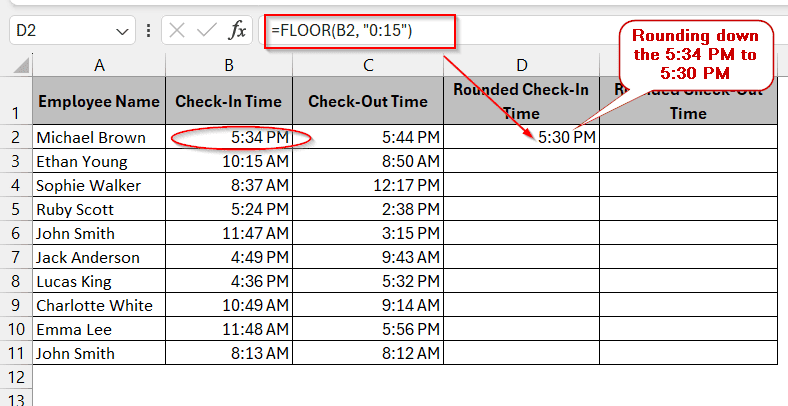
➤ Press the Enter key and drag down the cells to generate the same formula for column D.
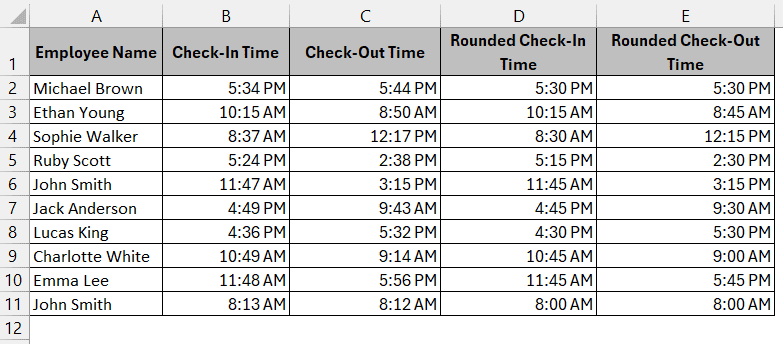
Note:
Useful only to round down time values.
ROUND Function For Time in Decimal
This method reaches the same result as MROUND without passing a time string as an argument, which is useful when your times arrive as raw decimals from an import and you would rather keep the whole calculation numeric. The two are mathematically identical for any timestamp, so pick whichever reads more clearly in your sheet. Excel stores 24 hours as 1 in the day, so 15 minutes is just 1/96th of one day. For this reason, when time is written in decimals, multiplying it by 96 can round to the nearest 15 minutes.
Steps:
➤ Select the cell where you want to store your result.
➤ Write the following formula –
=ROUND(B2 * 96, 0) / 96
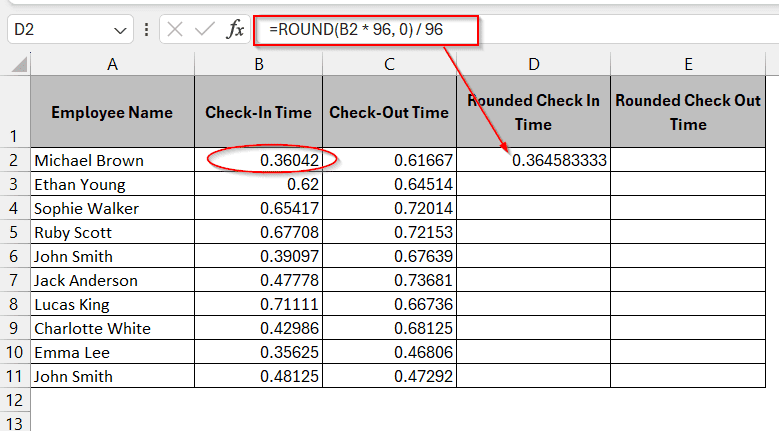
➤ Drag the cells to apply the same formula for the whole column.
➤ Select the result column and press Ctrl + 1 to format cells.
➤ Choose Custom and h:mm AM/PM to format them to time as per your convenience.

➤ With the time formatting, the rounded time will look similar to this –

Note:
If your time values are not in decimals, convert them to decimal hours and minutes before applying the ROUND function.
Inserting VBA Code to Round Time to Nearest 15 Minutes
When dealing with large datasets, the previous formulas can seem too manual or daunting. It is better to switch to an advanced method like a VBA program. With some simple steps, this VBA streamlines the rounding process much more easily and quickly.
Steps:
➤ Open the Visual Basic Application (VBA) window from the Developer tab -> Visual Basic.
➤ In the new window, click Insert and select Module to insert a new code snippet.
➤ Paste the following formula in the space below –
Function RoundToNearest15Minutes(t As Double) As Variant
    If IsNumeric(t) Then
        RoundToNearest15Minutes = Round(t * 96, 0) / 96
    Else
        RoundToNearest15Minutes = CVErr(xlErrValue)
    End If
End Function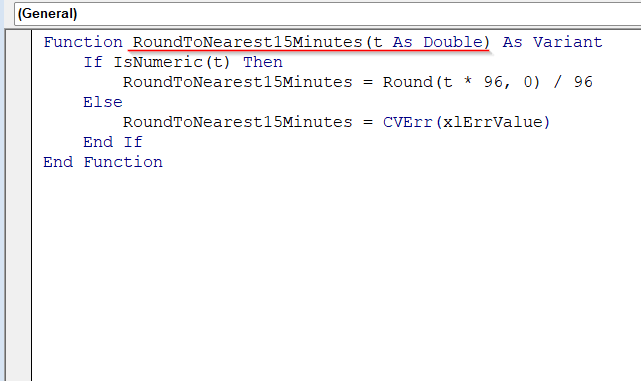
➤ Press Ctrl + S to save the file. The following window appears.

➤ Click Yes to continue and close the VBA window.
➤ Now, click on the cell where you want to store the rounded data and write the following formula –
=RoundToNearest15Minutes(B2)
Here your previous cell holds the time value.
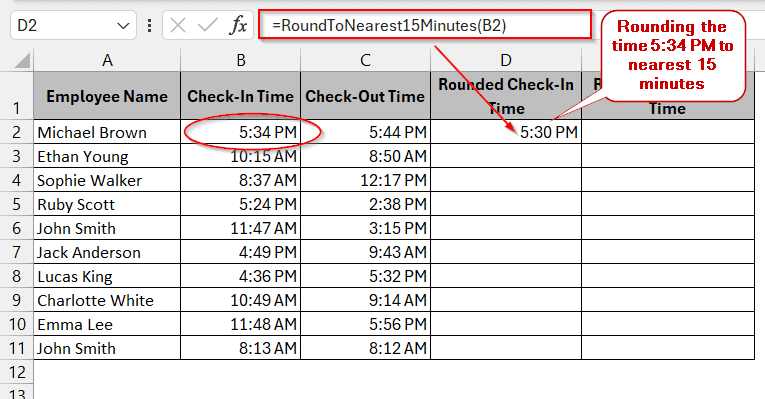
➤ Drag the cells to get the same formula for all the cells.

Note:
➥This snippet rounds to the nearest 15 minutes rather than only up or down, but it does not break ties the same way MROUND does. VBA’s Round uses banker’s rounding, so an exact midpoint goes to the even quarter-hour: 5:07:30 becomes 5:00 here where MROUND gives 5:15, and 5:37:30 becomes 5:30 where MROUND gives 5:45. If you need Excel’s behaviour, replace Round(t * 96, 0) with Int(t * 96 + 0.5).
➥If you faced any inconsistency in the time values, ensure the formatting of the cells is in h: mm AM/PM.
Using Power Query to Round Time
Like VBA, Power Query also helps clean large datasets directly imported from external CSV files – the same tool is covered for ordinary numbers in how to round numbers without a formula. You can create custom logic and apply to the cells without manually formulating each column.
Steps:
➤ Select the data column you want to round along with the header..
➤ Go to Data tab -> From Table/Range.
➤ A Create Table Window appears, click on the checkbox My table has headers, and click OK to open Power Query Editor.

➤ The Editor window with the table you selected will look like this –

➤ To format the data in time format, select the table and go to the Home tab -> Data Type -> Time. In the confirmation window, select Replace Current.
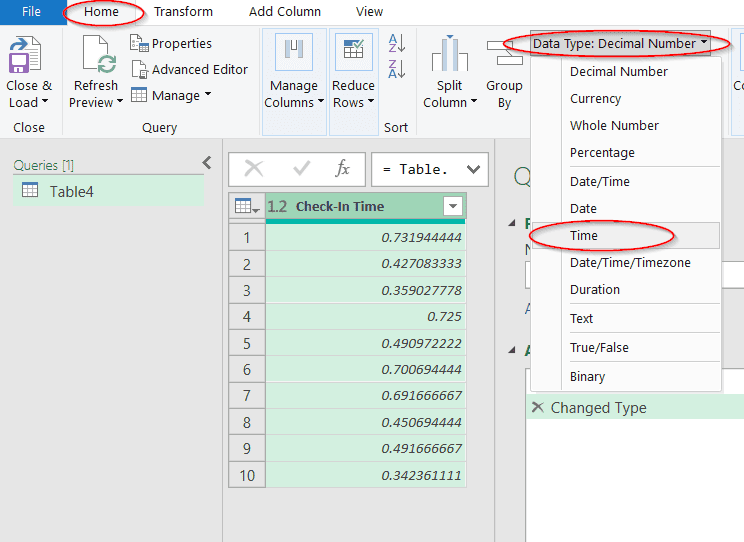
➤ The table is now formatted as time in h:mm:ss AM/PM.

➤ Then, click the Add Column tab and select Custom Column to open its window.
➤ Give a name to this custom column and paste the below code in the Custom Column Formula –
let
    t = [#”Check-In Time”],
    rounded = #time(
        Time.Hour(t),
        Number.Round(Time.Minute(t) / 15) * 15,
        0
    )
in
    Rounded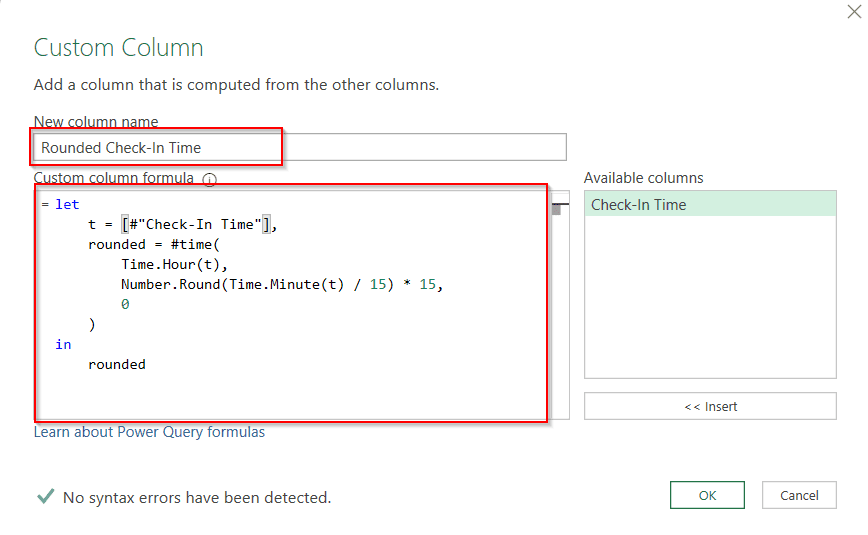
➤ Pressing Enter will create another new column with the rounded time in the nearest 15 minutes in the window.

➤ Go to the Home tab and click Close and Load.
➤ This will generate a new worksheet named Table X, where X will be some number. The worksheet will have only two columns – original time and rounded times.

Note:
For any errors and wrong results, check the code snippet for any syntax errors. It will be highlighted or mentioned in the Editor most of the time.
Downloadable Resources
Get our practice workbook or necessary files that we have worked with to prepare this article.
Round Time to Nearest 15 Minutes in Excel.xlsx
Frequently Asked Questions
How do I round time to the nearest minute in Excel?
Use =MROUND(A1, “0:01”) to round to the nearest minute. Swap in =CEILING(A1, “0:01”) to always go up to the next minute, or =FLOOR(A1, “0:01”) to always drop back to the one before. The same pattern works for any interval – change the second argument to “0:05” for five minutes or “0:10” for ten.
How do I round time to the nearest 30 minutes?
When rounding time to the nearest 30 minutes, you can use the MROUND formula, which is commonly used to round time. In the output cell, write down the formula of –
=MROUND(A1, “0:30”), where A1 is the cell where your time value is stored. The separator must be a colon, not a full stop – “0.30” is read as 0.3 of a day, or 7:12, and rounds to the nearest 7 hours 12 minutes instead of the nearest half hour.
Can I round time to the nearest hour?
In order to round time to the nearest hour in Excel, you can modify the MROUND formula. Use the following formula –
=MROUND(A1, “1:00”), where A1 indicates the cell containing the initial unrounded time value, and 1:00 indicates one hour. Based on your requirements, you can also use the CEILING and FLOOR functions for this.
How do I round time if my data includes dates?
As Excel stores date values as integers and time values as separate decimals, having the date in the data does not alter the previous formulas. Like before, you can use MROUND, FLOOR, CEILING, and ROUND functions to round time even if it contains dates.
How do I round time up only?
Use =CEILING(A1, “0:15”) to push a time up to the next quarter hour. ROUNDUP works too, but not on its own – it has no multiple argument, so it needs the scaling form =ROUNDUP(A1*96, 0)/96. Bare =ROUNDUP(A1, 0) rounds up to the next whole day rather than the next 15 minutes.
How do I round time down only?
Use =FLOOR(A1, “0:15”) to drop a time back to the previous quarter hour. ROUNDDOWN needs the same scaling as ROUNDUP above – =ROUNDDOWN(A1*96, 0)/96 – because on its own it rounds down to the start of the day. For plain numbers rather than times, see how to round down to the nearest whole number.
Final Thoughts
When working with the timestamps in Excel, rounding the time value to the nearest 15 minutes can standardize the data, enhance accuracy, and ease tricky calculations. For this, we tried to cover simple formulas like MROUND, CEILING, and FLOOR, while giving insights to advanced tools like VBA and Power Query for Excel enthusiasts.
If you are still confused, you can share your feedback or download the practice worksheets for better understanding.