
When working with numbers in an Excel worksheet, sometimes you may need to ignore the decimal parts. That’s especially true when maintaining calculations like budgeting or inventory. In such a case, rounding down helps avoid overestimation by trimming off the extras.
It is not going to be a challenging task as Excel makes it easy with built-in functions. In this article, we will show you how you can round down the values to the nearest whole number using two Excel functions: ROUNDDOWN and INT functions.
➤ Round down helps in the calculations where whole units only matter.
➤ Excel has simple built-in formulas to round down to the nearest integer in one or more cells.
➤ ROUNDDOWN Function: It removes the decimal and rounds down any number towards zero.
➤ INT Function: The function rounds down the values to the nearest lowest whole number, even for the negative values.
What Does it Mean by Round Down to the Nearest Whole Number?
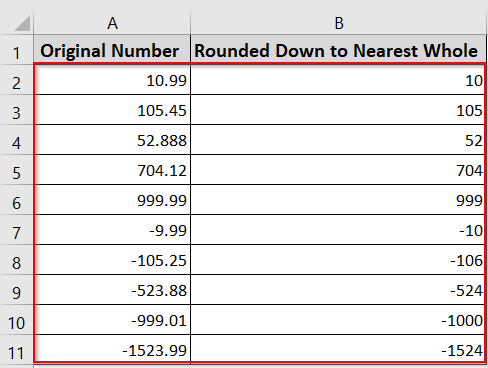
In simple words, rounding down to the nearest whole number means removing the decimal part of a number. For positive numbers this is unambiguous: 10.9 rounds down to 10. For negative numbers there are two different answers, and which one you get depends on the function you choose. Moving towards zero turns -3.5 into -3, which is what ROUNDDOWN does. Moving to the next lower whole number turns -3.5 into -4, which is what INT does. Both are called rounding down. Method 1 covers the first and Method 2 covers the second, so decide which you need before you pick a formula. If you need the opposite direction, see how to round up a formula result in Excel.
When you round down, you always drop the decimal. It doesn’t matter how close the value is to the next number. The method is useful when you want to ensure a conservative estimate or eliminate excess precision. It is also helpful for instances like pricing or inventory, where you need to work with whole units only.
Using the ROUNDDOWN Function to Round Down to Nearest Whole Numbers
The ROUNDDOWN function in Excel removes the decimal part of a number and always rounds down to the previous lower number, towards zero. It’s perfect for keeping whole numbers without rounding up.
Rounding Down Positive Numbers
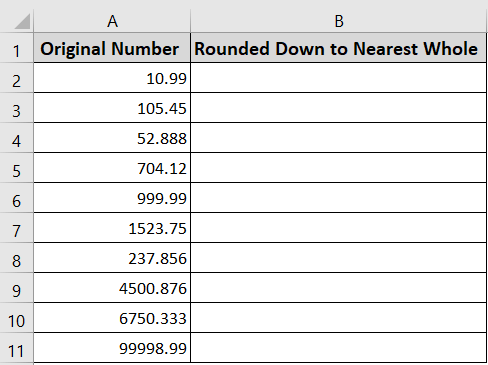
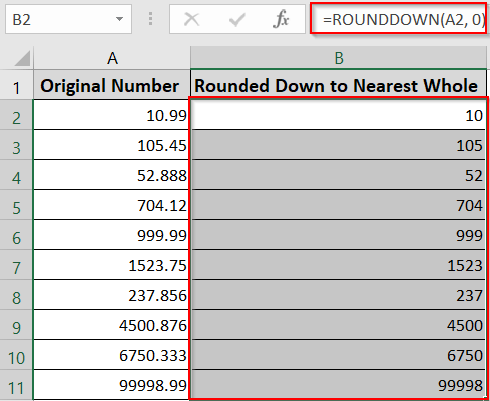
In the following dataset, we have some random positive values, including decimal parts. We are going to round down to the nearest integer using the ROUNDDOWN Function from each entry.
Steps:
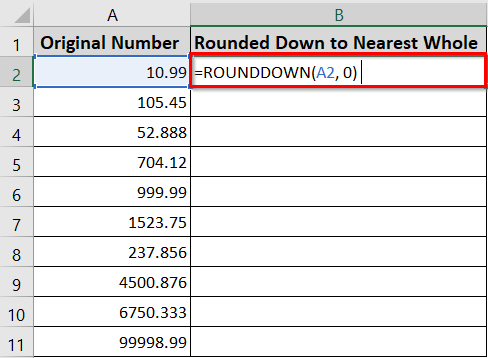
➤ Insert the following formula in the B2 cell.
=ROUNDDOWN(A2,0)
➤ Press Enter. The formula will round down the A2 value 10.99 to the nearest whole number, 10.
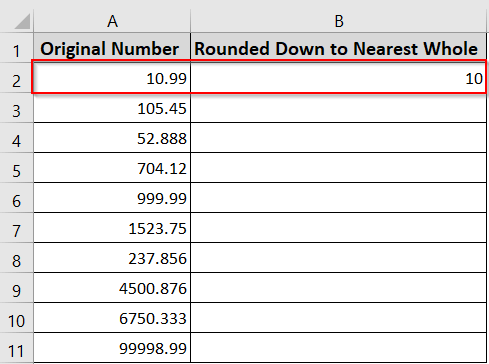
➤ Use the Autofill option to see the results all at once.
Rounding Down Negative Numbers
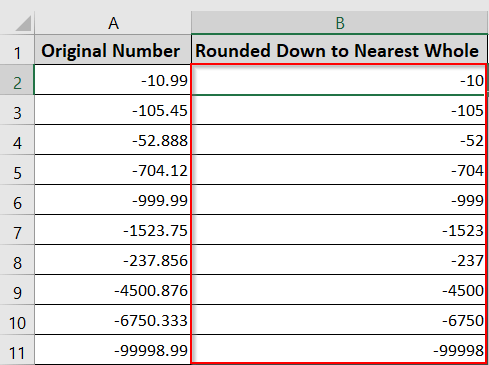
If you are working with negative numbers, you can round down to the nearest integer using the same ROUNDDOWN Function.
Steps:
➤ Enter the formula below in the B2 cell.
=ROUNDDOWN(A2,0)
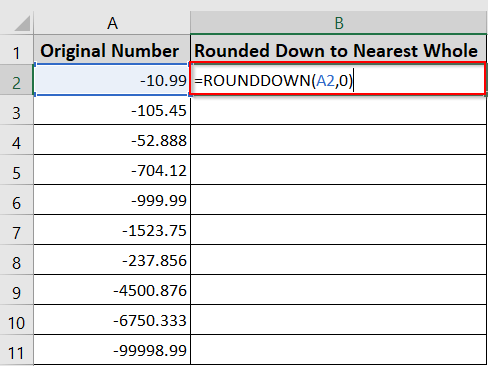
➤ The function will round down the cell A2 value: -10.99 to the nearest whole number, towards zero. The results will be -10.
The function: =ROUNDDOWN(number, num_digits).
Here,
➥ number: the number you want to round down.
➥ num_digits: the number of digits you want to keep after the decimal.
➥ Use 0 as we have to round down to the nearest whole number.
Using the INT Function to Round Down to the Nearest Whole Number
The INT function truncates the decimal portion of a number and effectively rounds it down to the nearest integer. Unlike the ROUNDDOWN Function, which always moves toward zero, the INT Function always moves down toward negative infinity.
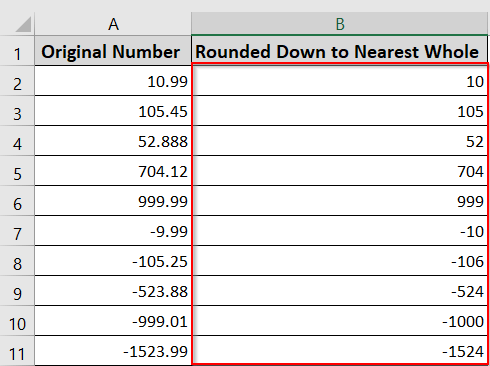
That means it always goes down to the next more negative whole number. For instance, 10.99 will become 10, and -523.88 will become -524.
In the following dataset, we have some random positive and negative values with decimal parts. We will round down to the nearest integer using the INT Function.
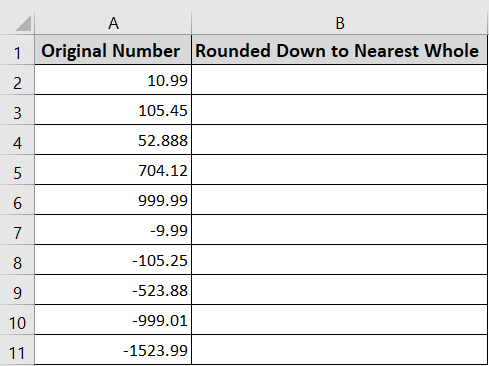
Follow the steps below:
➤ Insert the following formula in the B2 cell.
=INT(A2)
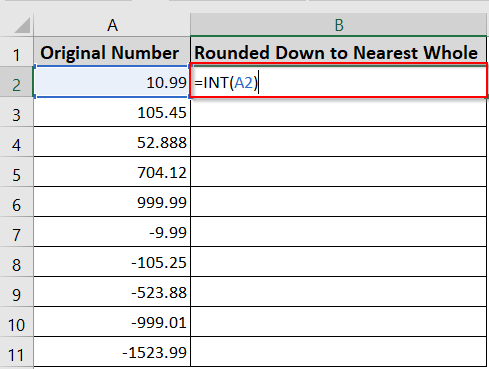
➤ Press Enter. The formula will return the values to the nearest whole number.
Downloadable Resources
Get our practice workbook or necessary files that we have worked with to prepare this article.
Round Down to Nearest Whole Number.xlsx
Frequently Asked Questions
How to round down in Excel without a formula?
Not reliably, and it is worth knowing why. Number formatting rounds to the nearest value rather than downward, so a cell holding 10.99 displayed at zero decimal places shows 11, not 10. It also changes the display only – the full 10.99 is still in the cell and is what every later formula uses.
If you want a genuine round down without typing a formula, use Power Query: select your data, go to Data >> From Table/Range, select the number column, then choose Transform >> Rounding >> Round Down and click Close & Load. The whole numbers load to a new sheet as real values. Note that Power Query’s Round Down works like INT, not ROUNDDOWN, so -10.99 becomes -11.
How do I round down a sum in Excel?
You can use the ROUNDDOWN Function with the SUM Function to round down a sum in Excel. Use the formula: =ROUNDDOWN(SUM(A1:A5), 0).
Here,
- ROUNDDOWN(): It rounds a value down to a specified number of decimal places.
- SUM(A1:A5): It calculates the sum of the values in cells A1 to A5, so change that range to match your own data.
- 0: Round down the whole number towards the nearest integer.
How to round down to 2 decimal places in Excel?
You can use the ROUNDDOWN function to round down to 2 decimal places in Excel. Use the ROUNDDOWN function with num_digits set to 2. For instance, =ROUNDDOWN(A1, 2). It will round down to 2 decimal places of the A1 cell value.
How do you set rounding in Excel?
Follow the steps below to set rounding precision in Excel.
➤ Go to File >> Options >> Advanced
➤ Under, when calculating this workbook, select the Set precision as displayed >> check box >> select OK.
➤ Select the cell you want to format.
➤ Go to the Home tab >> click the small arrow in the Number section >> choose Number in the Category box.
➤ Enter the number of decimal places in the Decimal places box.
One caution before you tick that box. Set precision as displayed does not just change rounding behaviour – it permanently replaces every stored value in the workbook with the value currently on screen, and there is no way to recover the original digits afterwards. Leave it unchecked unless you specifically want that, and use ROUNDDOWN or INT in a helper column instead when you only need rounded results. If the problem is that Excel is shortening numbers you did not ask it to change, see how to stop Excel from rounding your decimals.
Why does Excel round down my numbers?
Excel may round down the numbers due to the formula you are using or the cell formatting. If you are using formulas like ROUNDDOWN or INT, it will remove the decimal part and round down the number. Moreover, if you have reduced the decimal places during cell formatting, Excel will hide the decimal parts in the display.
Wrapping Up
In today’s quick tutorial, we’ve covered two very easy ways to round down the values to the nearest whole number in Excel using formulas. These ROUNDDOWN and INT formulas help you to maintain your data precisely. You can try out the sample Excel sheets to practice, and let us know how these techniques have simplified your calculations.