
You can display text on multiple lines within a single cell in Google Sheets by using a line break. A line break is useful when you are working with lengthy sentences, addresses, or concatenated text values. By using a line break, you can maintain readable and clear content. You don’t need to use multiple cells or rows to add addresses or lengthy sentences. You can use a manual line break where you want to break the text. In this article, you will learn how to go to the next line in Google Sheets, skip a line and remove a line break.
What is a Line Break?
To start a new line of text within the same cell is called a line break in Google Sheets. You don’t need to use multiple cells or rows; you can write big text within a cell using a line break. You can use line breaks to write:
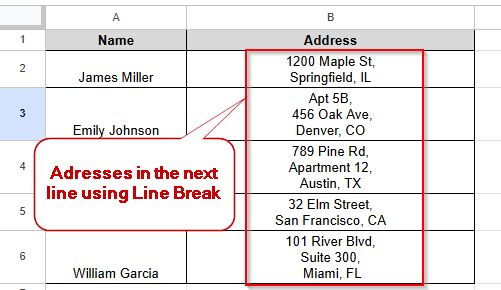
- Addresses
- Notes or comments
- Product descriptions
- Multi-step instructions
- Personal messages or memos
How to Go to the Next Line in Google Sheets
When you want to write addresses, multi-line descriptions, or notes, you can write them inside a single cell. Going to the next line within a cell is called a line break. Using a keyboard shortcut, you can go to the next line, which helps keep your data clean and organized. Let’s look at the dataset below, where the names and addresses are listed, and you want to organize the address list using a line break. Follow these instructions step by step to go to the next line in Google Sheets.
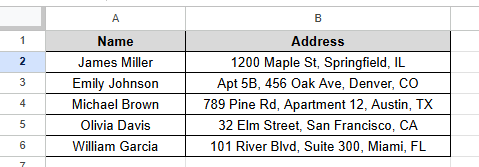
➤ Place the mouse cursor where you want the line to break.
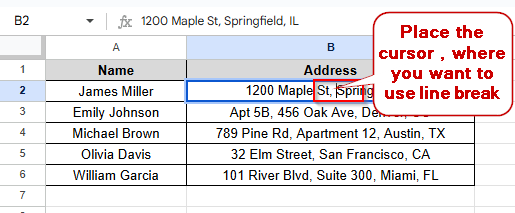
➤ Press Alt + Enter (Windows) or Ctrl + ⌘ + Enter ( Mac).
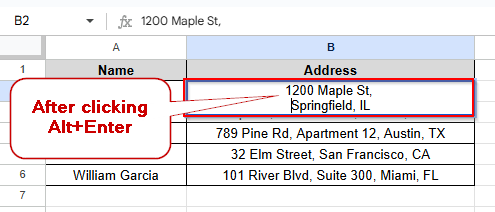
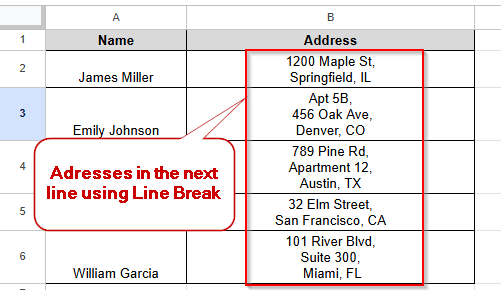
➤ Press Enter and see the result. The address is separated in a single cell using a line break.
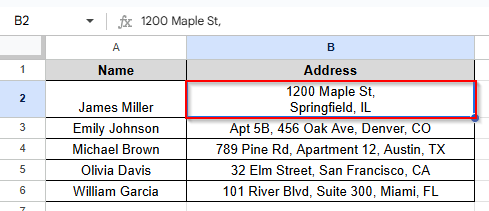
➤ Do the same task for other cells to go to the next line using a line break.
Skip a Line in Google Sheets
Sometimes, when you are working with a message, a note, or an address, you need to leave a blank line between two lines of text within the same cell. Leaving a blank line within the same cell is called skipping a line. Using keyboard shortcuts, you can skip a line in Google Sheets. Let’s look at the dataset below, where the names and notes are listed.
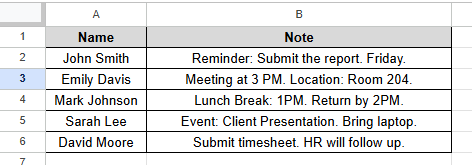
➤ Place the mouse cursor where you want to skip a line.
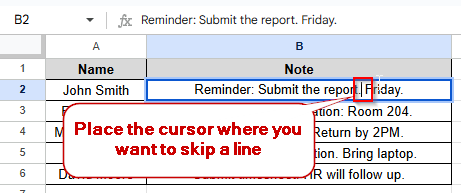
➤ Press Alt + Enter (Windows) or Ctrl + ⌘ + Enter ( Mac).
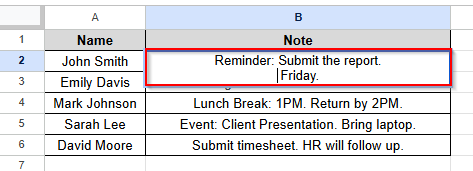
➤ Without writing anything, keep the line blank to skip a line and again Press Alt + Enter (Windows) or Ctrl + ⌘ + Enter ( Mac).
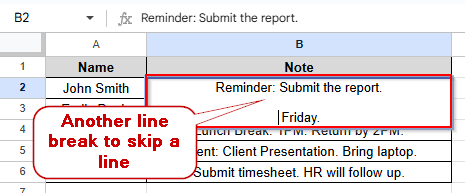
➤ Do the same for other cells and see the result. Lines are skipped using a line break.
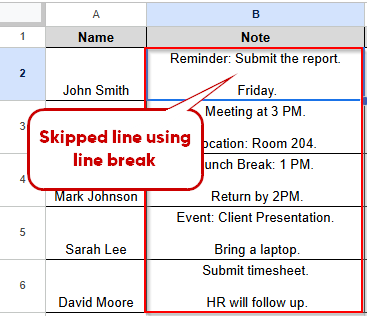
Remove Line Breaks in Google Sheets
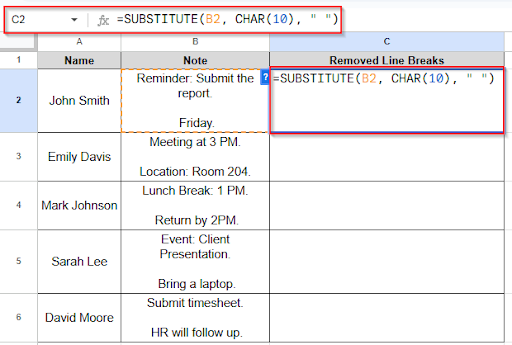
When cleaning up data or exporting data in Google Sheets, you need to remove line breaks to display everything in a single line. Using the SUBSTITUTE function, you can remove line breaks easily. Let’s look at the dataset below, where the notes are organized using line breaks. Now you want to remove those line breaks. Follow these instructions step by step to remove line breaks.
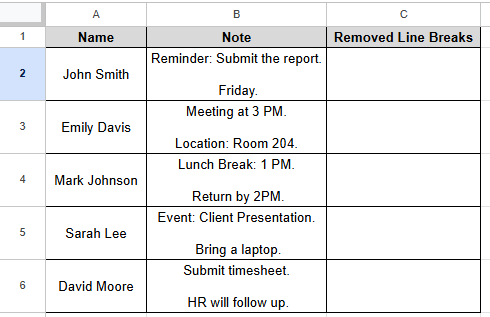
➤ Click on cell C2 and write this formula
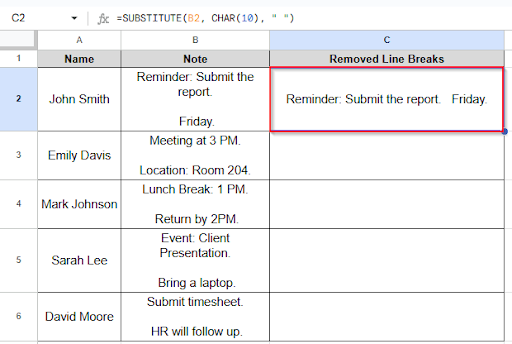
➤ Press Enter and see the result. The line breaks are removed.
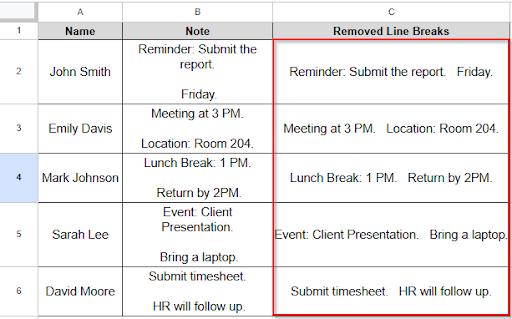
➤ Drag the formula down and see the result in other cells. Line breaks are removed, and the text is written within a cell.
Frequently Asked Questions
Is it possible to add multiple line breaks in a single cell?
Yes, you can add multiple line breaks. Press Alt + Enter (Windows) or Ctrl + ⌘ + Enter ( Mac). as many times as you like.
Why am I unable to see the line break?
Make sure that the text wrapping is turned on:
Wrapping → Format → Wrap
Concluding Words
Line break is a formatting tool that is simple but powerful to improve readability and organize your data. When you want to keep your content within a single cell for notes, addresses, you can add line breaks with a keyboard shortcut. You can also remove the line break using the SUBSTITUTE function. In this article, we discussed in detail how you can add a line break, skip a line and remove a line break. If you don’t understand anything or get stuck in any step, feel free to share your problems in the comment section.