
Average, also called as Mean, is the middle point or central value of a set of numbers. To calculate the average of a group of numbers, you have to add the numbers first and divide by the total number of numbers of that group.
The basic formula for calculating the average is:
Average = (Sum of all numbers)/(Total number of items)
Again, there are various kinds of average in mathematics. Simple average, weighted average, median, mode, geometric average, etc. are some of them. There are different average formula for different types of averages in google sheets. There are also some dedicated built-in functions to calculate a specific type of average.
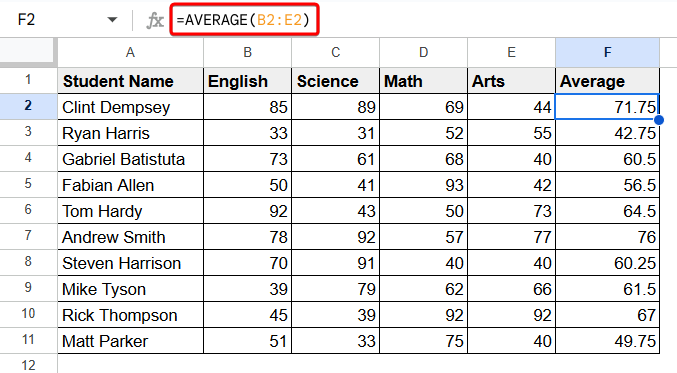
In this article, you will learn different average formula to calculate average in google sheets. For this, we have a dataset of examination marks of a few students. We will use it in writing the average formula in google sheets.
Average Formula for Arithmetic Mean in Google Sheets
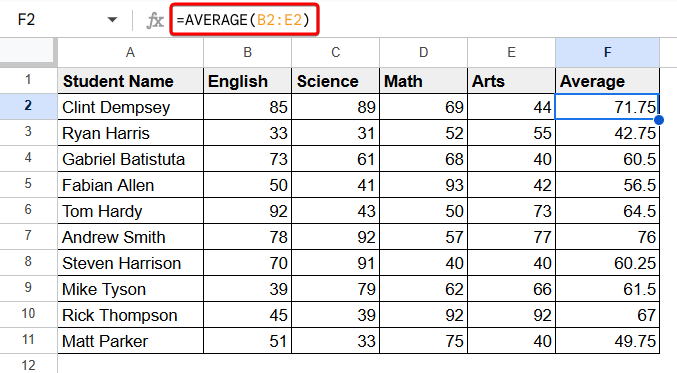
You can use the AVERAGE function in the average formula to calculate the arithmetic mean in Google Sheets.
To calculate the arithmetic mean with an average formula:
➤ Select a cell (i.e. F2).
➤ Use the following average formula to have the arithmetic mean:
=AVERAGE(B2:E2)➤ Use Fill Handle to AutoFill the rest cells.
Average Excluding Blank
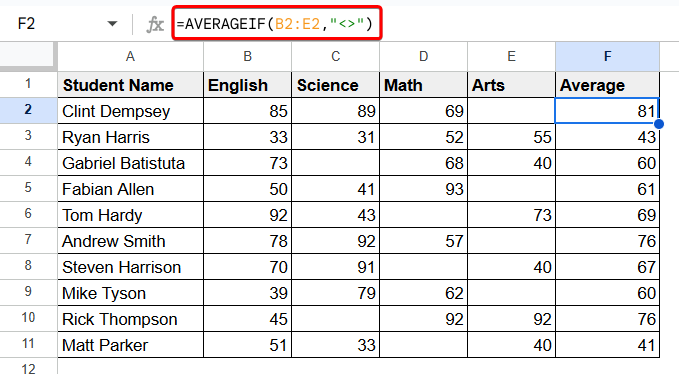
A blank cell can be considered as zero in some cases while doing calculation in Google Sheets. You can use the AVERAGEIF function to ignore the blank cells and consider only cells that are not blank to calculate your average.
To calculate average with the cells that are not blank, apply the following formula:
=AVERAGEIF(B2:E2,"<>")
Google Sheets Average Ignoring 0
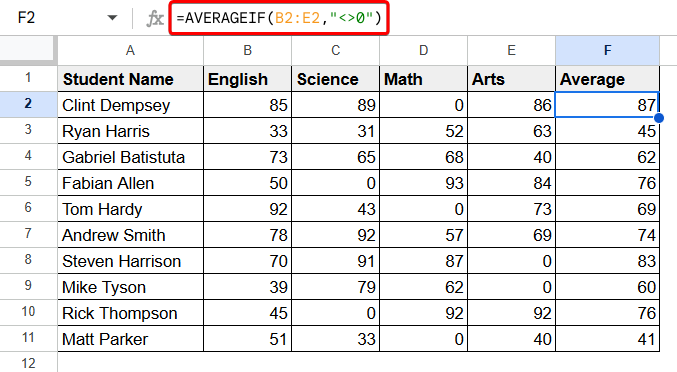
To calculate the average of a group of numbers ignoring the zeros, you can apply the AVERAGEIF function with a condition.
Just write the following formula and press Enter to have average ignoring 0 in Google Sheets:
=AVERAGEIF(B2:E2,"<>0")
Moving Average in Google Sheets
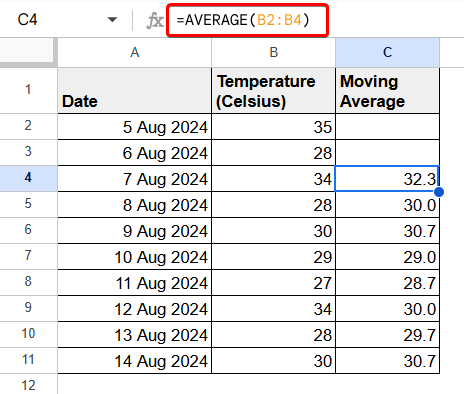
A Moving Average is a statistical tool that smooths data by averaging a set number of recent values over a specific time period to reveal trends. It helps to understand data trends and patterns clearly observing a long term pattern. It helps reduce the impact of short-term fluctuation.
Here, we have data of temperatures for a certain time period. We can calculate the moving average considering the temperatures of the last three days to visualise the temperature pattern clearly.
To calculate the moving average, apply the following formula (i.e. C4) and use the Fill Handle.
=AVERAGE(B2:B4)
Weighted Average Formula For Google Sheets
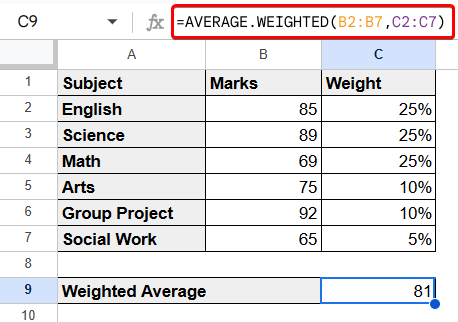
A Weighted Average is a type of average that considers the relative importance or weight of each value in a dataset. You can use the value and weight of each particular and use the AVERAGE.WEIGHTED function to find the weighted average.
Here, we have a marksheet with different subjects and their weights. Just apply the following formula to find the weighted average:
=AVERAGE.WEIGHTED(B2:B7,C2:C7)
Frequently Asked Questions
How to handle text and errors in average formula in Google Sheets?
You can use the IFERROR function in an average formula to ignore the text and errors in a cell. To calculate the average ignoring the cells that contain texts and errors, use the formula:
=IFERROR(AVERAGE(B2:B11), 0)
How to exclude specific cells in the average formula in Google Sheets?
You can ignore the specific cells while defining the range in the average formula to exclude them. To calculate the average with the values B2:B15 ignoring B7:B12 cells, you can use the following formula:
=AVERAGE(B2:B6, B13:B15)
What is the difference between blank cell and zero in Average formula?
A blank cell is ignored in Google Sheets while calculating the average but a zero is considered as a value. So, a blank cell does not affect the average but a zero can affect the average formula by giving a wrong average value.
Concluding Words
Google Sheets is a very useful tool to calculate average with different average formula for different types of averages. You can calculate the arithmetic mean of a group of numbers with the AVERAGE function. To exclude blank cells or zeros, you can use the AVERAGEIF function. The AVERAGE.WEIGHTED function incorporates values and their respective weights to calculate the weighted average. You can also calculate moving averages with the AVERAGE function to reveal trends over a certain period of time. Please, double-check your average formulas, use the right symbols, and organise your results clearly to ensure accuracy.