
Rounding is making a number shorter and simpler. It is a mathematical process that is used to simplify numbers by reducing their decimal places. By adjusting numbers up or down, you can focus on the essentials without getting lost in unnecessary detail. Rounding is oftenly used in cost estimation, travel-time calculation, distance measurement, etc. In Google Sheets, you can simply do the rounding with the help of the functions like ROUND, ROUNDUP, ROUNDDOWN, etc.
Round to 2 Decimal Places in Google Sheets
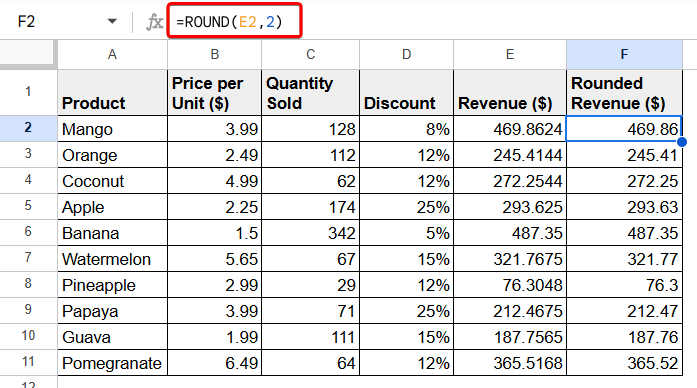
To improve the data clarity and consistency, rounding numbers to 2 decimal places is highly used. In Google Sheets, you can use the ROUND function to round numbers to 2 decimal places quite easily.
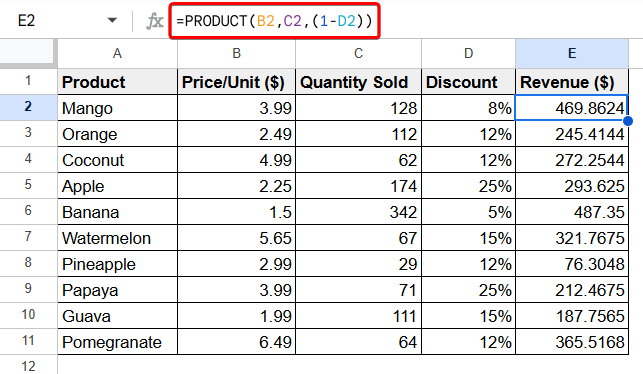
In this article, we have a dataset of the sales revenue of a supershop. We will round the revenue values into 2 decimal places.
To round the numbers to 2 decimal places, follow the following steps:
➤ Select a cell (i.e. F2) first.
➤ Write the following formula:
=ROUND(E2,2)➤ Then, use Fill Handle to AutoFill the remaining cells.
Round to Nearest Whole Number in Google Sheets
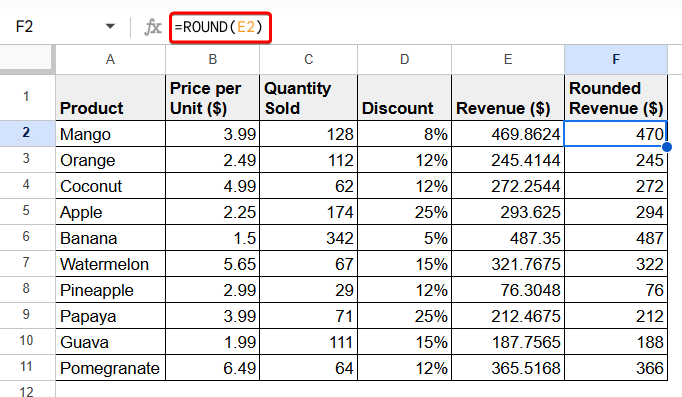
We often like to ignore the decimal portion of a number and round it to the nearest whole number. In Google Sheets, we can do it in the simplest possible way just by using the ROUND function.
Just apply the following formula with the ROUND function and define the cell containing the number:
=ROUND(E2)
Round to Nearest 5 in Google Sheets
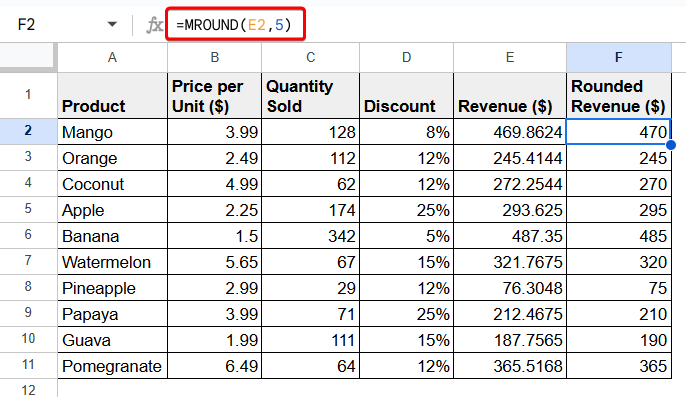
You can round a number to the nearest 5 for better clarity and consistency. In Google Sheets, you can do it easily with the use of the MROUND function. Just apply the following formula:
=MROUND(E2,5)
Round Up to Nearest 10 in Google Sheets
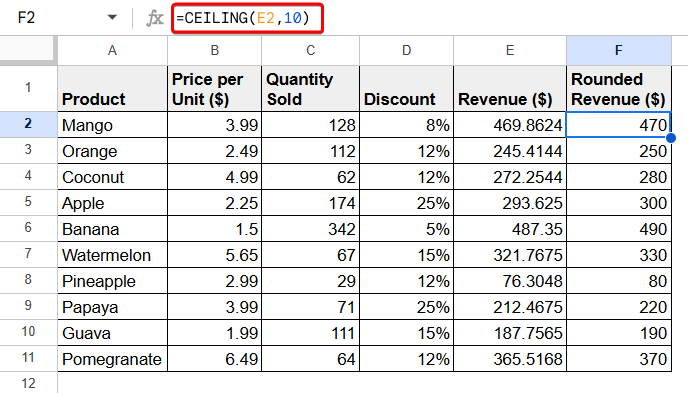
A very common human nature is that they try to round a small number up to the nearest 10. The CEILING function makes it easy to round a number up to the nearest 10.
Just write the following formula to round a number up to the nearest 10:
=CEILING(E2,10)
Round Up to Nearest 100 in Google Sheets
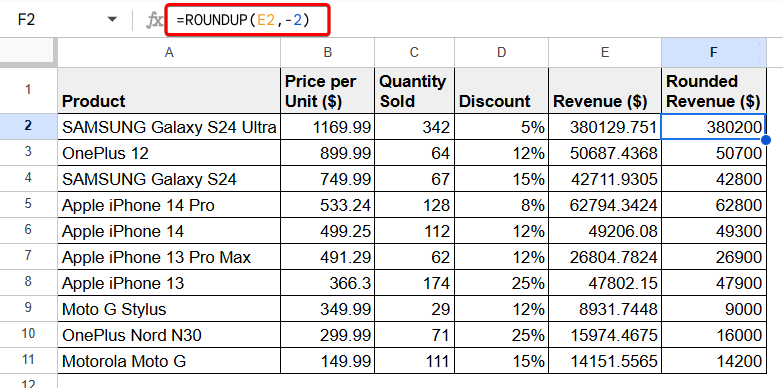
For big numbers, we like to have them rounded to the nearest 100 or 1000. We can easily round up a number to the nearest 100 just by using the ROUNDUP function. Just apply the following formula to do so:
=ROUNDUP(E2,-2)
Round to Nearest 1000 in Google Sheets
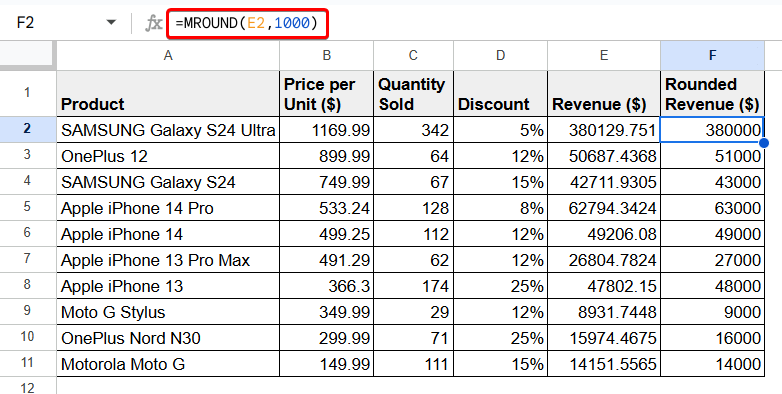
To round a number to the nearest 1000 in Google Sheets, you can use the MROUND function.
Write the following formula and press Enter:
=MROUND(E2,1000)
Frequently Asked Questions
Why is Google Sheets rounding my numbers?
There could be one of many possibilities for rounding your numbers in Google Sheets.
- The cell might be formatted to display a limited number of decimal places.
- A column might be too narrow to visualize the entire number.
- The implementation of the ROUND, ROUNDUP, or ROUNDDOWN functions.
- Formatting cells as currency or percentages.
- Default precision settings may make numbers look rounded, even though the full value is stored in the background.
What’s the basic difference between ROUND, ROUNDUP, and ROUNDDOWN?
The ROUND function always rounds a number to the nearest specified decimal place. On the other hand, the ROUNDUP and ROUNDDOWN functions ignore the decimal values and round the number up and down respectively.
How to stop Google Sheets from rounding numbers?
To stop Google Sheets from rounding numbers, increase the decimal places or adjust the cell formatting. You can also widen the column to display the full number.
Concluding Words
Rounding in Google Sheets simplifies numbers and makes data clearer and easier to read. You can use the ROUND, MROUND, or CEILING functions with desired condition to round a number to 2 decimal places, the nearest whole number, or even round to the nearest 5, 10, 100, or 1000. This helps in various scenarios like cost estimation, sales reporting, etc. If Google Sheets is rounding numbers automatically, it could be due to cell formatting, column width, or default precision settings. Adjusting decimal places or widening columns can stop unwanted rounding.