
To perform various mathematical calculations in the simplest possible way, Google Sheets is considered a powerful online spreadsheet tool. Multiplying numbers in Google Sheets is a fundamental task for calculating totals, applying formulas on datasets, or simplifying complex calculation. You can multiply numbers directly by using an asterisk (*) sign between two numbers, using cell references, or applying functions like MULTIPLY, PRODUCT, etc. In this article, you will learn how to multiply in Google Sheets in different ways with simple examples.
Here, we have a dataset with different product along with their price per unit and quantity sold. We need to multiply the price per unit with the quantity sold to have the total revenue.
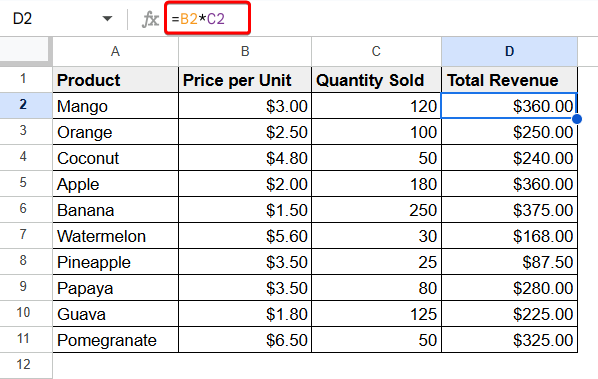
How to Multiply Numbers Directly in Google Sheets
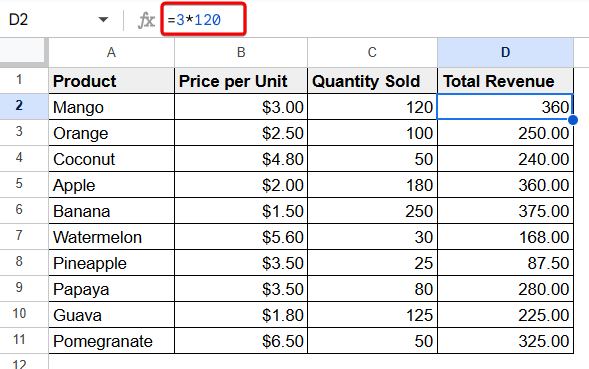
You can use the asterisk sign (*) between two numbers to multiply them directly in Google Sheets.
To multiply numbers directly in Google Sheets:
- Select a cell (i.e. D2).
- Use the following formula to calculate the total revenue by multiplying the values in the Price per Unit and Quantity Sold columns:=3*120
- Press Enter.
- Repeat the same process for other cells in the Total Revenue column.
How to Multiple Numbers Using Cell References in Google Sheets
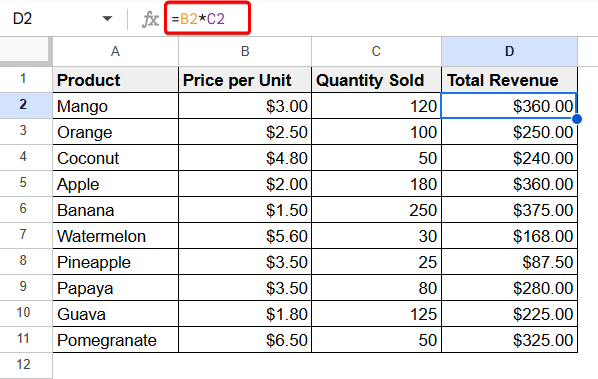
You can define the cell references with an asterisk sign in between the cell references to have a multiplication of two numbers from two columns. In this way, you can change the values on the defined cells according to your need and the results will be updated automatically.
We have applied the following formula to have the multiplication of the Price per Unit and Quantity Sold columns:
=B2*C2
We have used the Fill Handle to AutoFill the rest cells in the Total Revenue column.
How to Use the Multiplication Functions to Multiply in Google Sheets
There are some built-in functions in Google Sheets to multiply numbers easily. Some of them are the MULTIPLY, PRODUCT, etc.
Using MULTIPLY Function
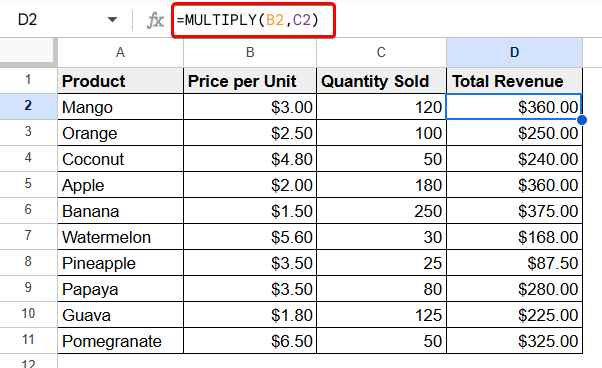
You can use the MULTIPLY function with two numbers or cell references to have multiplication between them. You can not multiply more than two numbers with this function.
Use the following formula to do the multiplication between the Price per Unit and Quantity Sold columns:
=MULTIPLY(B2,C2)
Using PRODUCT Function
To multiply more than two numbers with the built-in function, you can use the PRODUCT function.
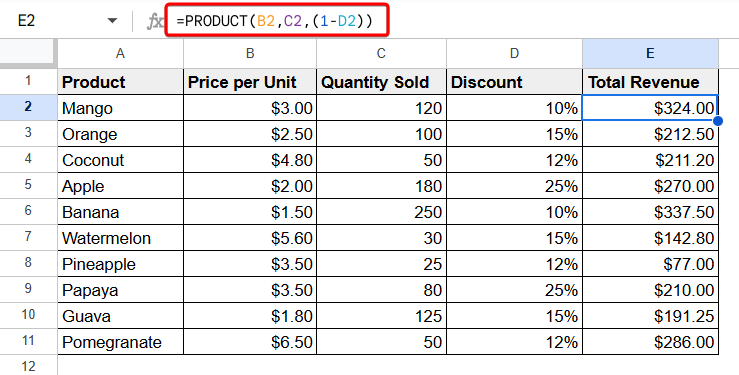
Here, we have applied the following formula to calculate the total revenue considering the discount.
=PRODUCT(B2,C2,(1-D2))
How to Perform Conditional Multiplication in Google Sheets
You can also sort data with specific conditions and find out the total of multiplied values. For this, you need to use the SUMPRODUCT function.
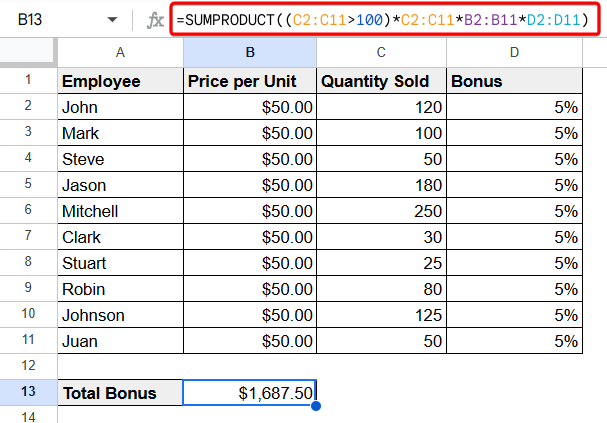
Here, we have the sales information of a company. We will try to find out the total bonus given among the employees that have sold equal or more than 100 units.
You can apply the following formula to have the total bonus given to the employees who have sold equal or more than 100 units.
=SUMPRODUCT((C2:C11>100)*C2:C11*B2:B11*D2:D11)
Things to Remember
Please, try to be careful about the following matters:
- Check and double-check your formulas by clicking the cell and looking at the formula bar.
- Make sure you’re using the right symbols at the right places.
- Set aside a specific column or row for your results to make your spreadsheet look neat and easy to understand.
- Learn The use of cell references in your formulas to make them dynamic.
Frequently Asked Questions
Why is my multiplication formula showing an error?
Your multiplication formula might have shown an error because of wrong cell references, text instead of numbers, empty cells, or using the wrong symbol for multiplying.
How to multiply across an entire row or column and find the total result?
You can use the SUMPRODUCT function to multiply across an entire row or column and find the total result.
Is it possible to multiply cells from different sheets?
Yes, it is possible to multiply cells from different sheets in Google Sheets. You just need to reference the cells from other sheets including the sheet name in the formula.
When to use MULTIPLY and PRODUCT functions?
The MULTIPLY function is used for the multiplication of two numbers and the PRODUCT function is for three or more numbers.
Concluding Words
Google Sheets makes multiplying numbers easy with various methods. You can use the asterisk (*) for direct multiplication, reference cells with the asterisk for automatic updates, and built-in functions like MULTIPLY and PRODUCT for more complex calculations. For conditional multiplication, the SUMPRODUCT function helps calculate totals based on specific criteria. Please, double-check your formulas, use the right symbols, and organize your results clearly to ensure accuracy while multiplying in Google Sheets.